
 Pay by Interac (Shakepay guide)
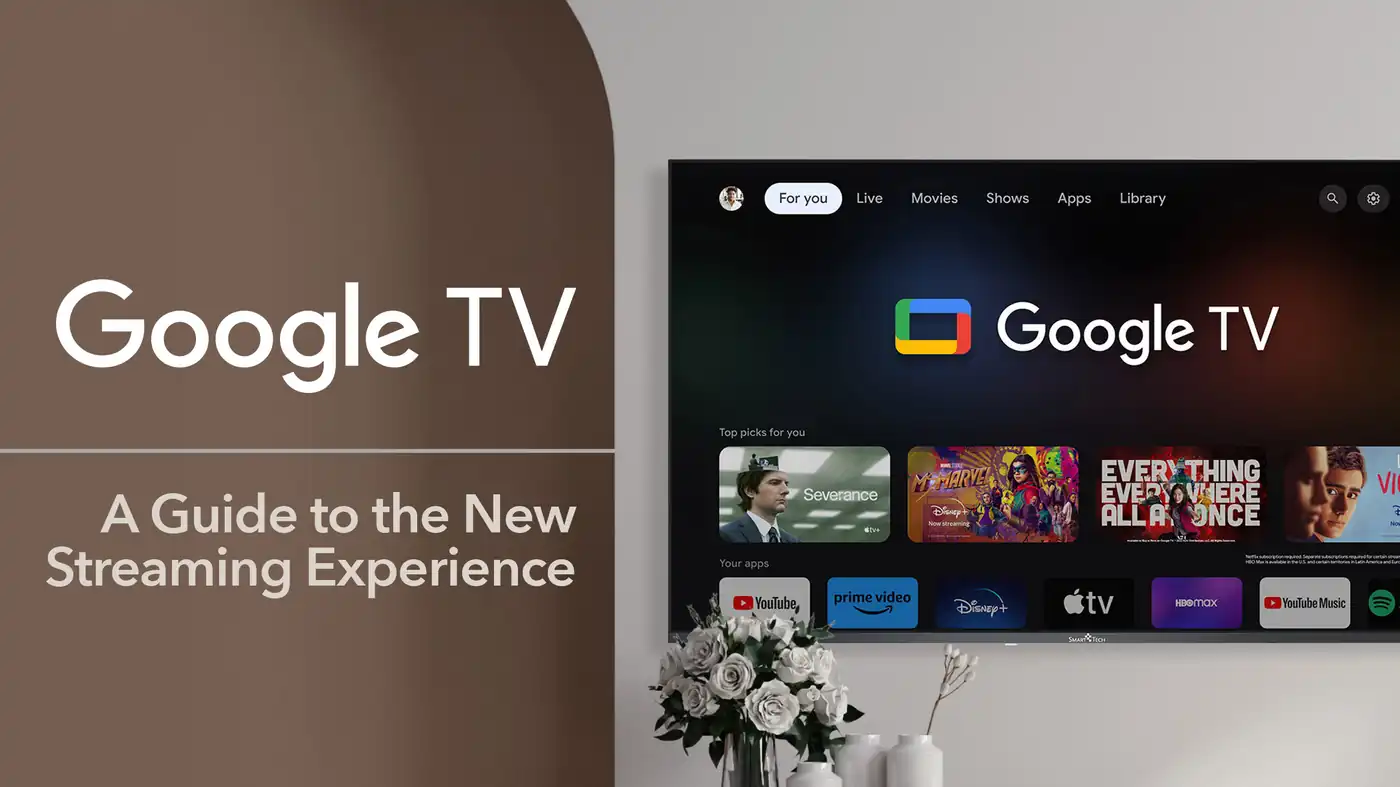
Table of contents
Short answer: The easiest way to set up IPTV on Google TV is to install a player app from the Google Play Store, sign in with your Xtream Codes or M3U details, and let the channels load. It takes about 10 minutes and needs no extra hardware.
Setup steps
| Step | What to do |
|---|---|
| 1 | Open the Apps tab and search for a player such as TiviMate |
| 2 | Install and open it |
| 3 | Choose Xtream Codes or M3U |
| 4 | Enter your details with the remote or the Google TV phone app |
| 5 | Wait for channels and the guide to load |
Choosing an app
| App | Good for |
|---|---|
| TiviMate | A cable-style guide |
| XCIPTV | Simple Xtream Codes logins |
| VLC | Quick tests with an M3U link |
Google TV tips
| Issue | Fix |
|---|---|
| Storage is full | Remove unused apps and clear the cache |
| Typing is slow | Use the Google TV app on your phone as a keyboard |
| Buffering | Use 5 GHz, or an Ethernet adapter on Chromecast |
| Wrong guide times | Check the device’s time zone |
Follow our setup tutorials, or test first with our free 24-hour trial.
Frequently asked questions
Does Chromecast with Google TV work for IPTV?
Yes. Its limited storage means you should keep few apps installed.
Do I need a VPN on Google TV?
It is not required. A VPN can slow your stream and does not change the status of the content.
Official sources
Key takeaways
Quick summary
- Choose an IPTV app based on your device (Smart TV, Fire TV, Android TV, iPhone/iPad).
- To reduce buffering: test Ethernet first, then check router placement and app buffer settings.
- When contacting support: include device model + app name + exact time of issue for fastest resolution.


Comments (0)
Leave a comment