
 How to Buy Crypto (ShakePay)

IPTV Buffering in Canada: How to Find the Real Cause and Fix It
You sit down to watch the game. The picture freezes. A spinning circle appears, then the stream drops to a blurry mess. If that sounds familiar, you are dealing with IPTV buffering — and plenty of Canadians are right there with you.
Here is the frustrating part. Most guides hand you the same tired list: reboot the router, use Ethernet, clear the cache. Those steps do help sometimes. However, they never tell you where the problem actually lives. As a result, you end up guessing for weeks.
This guide takes a different route. First, you learn to pinpoint the cause in about a minute. Next, you fix that one thing instead of everything at once. Canadian details matter too. Condo Wi-Fi congestion, evening peak hours and rural connections all behave in their own way.
What IPTV buffering really is (and why it happens)
Your player does not download the whole show. Instead, it grabs small chunks of video, a few seconds at a time. Those chunks sit in a short waiting line called the buffer. Playback stays smooth as long as new chunks arrive faster than the screen uses them.
Buffering starts the moment that line runs empty. In other words, the video is being watched faster than it is being delivered. The player then pauses and waits to refill. That is the spinning wheel you see.
So the real question is never "why is my stream bad?" The real question is "where did the chunks get delayed?" There are only four possible answers:
- Your Wi-Fi — the signal between your router and your TV or box.
- Your device — an older stick or TV app that cannot keep up.
- Your internet path — the connection from your home out to the wider network.
- The server — the source your provider streams from.
Each cause looks slightly different on screen. Once you learn the signs, troubleshooting gets much faster. That is what the next section covers.
The 60-second test: is it your setup or the stream?
Before you change a single setting, run this quick check. It saves hours. Play the same channel on a second device, ideally your phone. Then use mobile data instead of your home Wi-Fi.
Two clear outcomes follow. If the phone plays smoothly on mobile data, the problem sits inside your home. If the phone stutters too, the issue is further out — your internet line or the server.
Quick tip: test at the exact moment the problem happens, not an hour later. Buffering often follows a schedule, and a clean test at 2 p.m. proves nothing about 8 p.m.
Use the table below to match what you see with the most likely source. It is not a perfect science. Still, it points you at the right area on the first try.
| What you notice | Most likely cause | Where to look first |
|---|---|---|
| Every channel freezes, on every device | Internet line or router | Speed test and modem |
| Only one or two channels stutter | Server or single stream source | Your provider |
| Smooth in the morning, choppy at night | Peak-hour congestion | Your ISP plan |
| Fine on phone, choppy on the TV | Wi-Fi signal or device power | Router placement and hardware |
| Video freezes but audio keeps playing | Device decoding limits | Streaming box or app |
| Stream drops and reconnects on a loop | Unstable connection or session limit | Wi-Fi stability, active devices |
How to fix IPTV buffering in 10 minutes
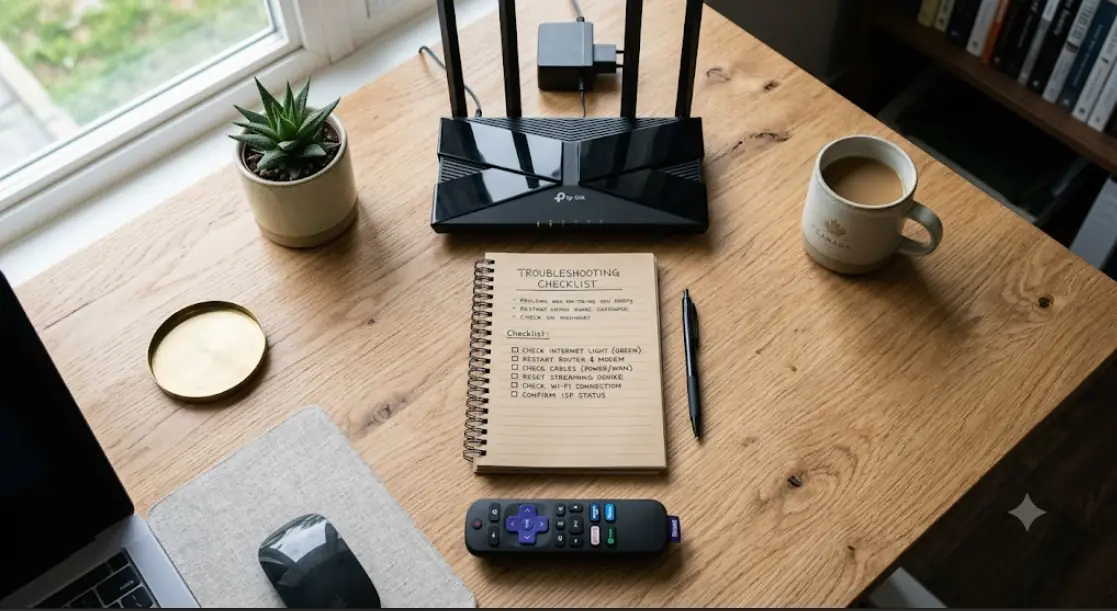
Work through these steps in order. Importantly, do not skip ahead. Each step rules out one cause, so order is what makes this fast.
- Reboot everything properly. Unplug your modem, router and streaming device. Wait 30 seconds, then power them back on one at a time.
- Run a speed test on the streaming device itself. Testing on your laptop in another room tells you very little. Test where the problem is.
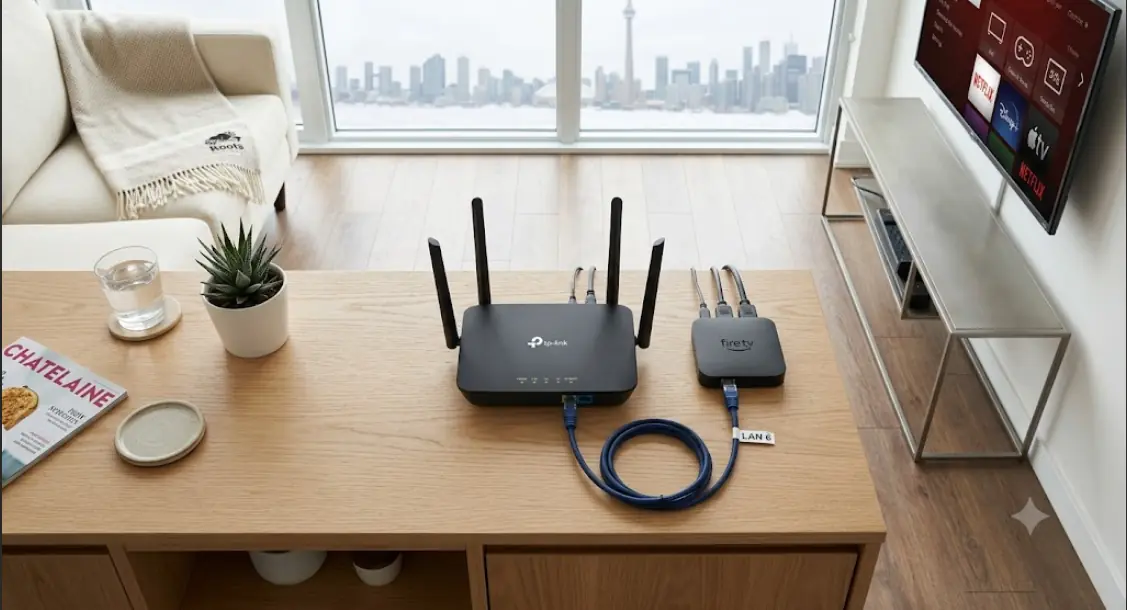
- Plug in an Ethernet cable if you can. This single change fixes more freezing than anything else on this list.
- If you must use Wi-Fi, switch to the 5 GHz band. Move the device closer to the router as a test, even temporarily.
- Pause other heavy traffic. Game downloads, cloud backups and big uploads all compete for the same line.
- Lower the stream quality. Many players let you pick a lower resolution or a backup feed. A stable 720p beats a stuttering 1080p.
- Clear the app cache, then restart the app. On Android-based devices, look under Settings, then Apps, then Storage.
- Try a different player app. If the same channel plays fine elsewhere, your original app is the weak link.
- Test the same channel at a different time of day. This confirms or rules out peak-hour congestion.
- Contact your provider with notes. Tell them the channel name, the time, and what your test showed.
Most people find their answer by step four. That said, the later steps matter when the cause sits outside your home.

Wi-Fi problems behind constant freezing and stuttering
Wi-Fi is the number one cause of choppy playback in Canadian homes. Speed is rarely the issue. Stability is. A connection that dips for two seconds every minute will ruin a live stream, even on a fast plan.
2.4 GHz or 5 GHz: which band should you use?
Your router likely broadcasts both. They behave very differently. The 2.4 GHz band travels further and passes through walls more easily. However, it is slower and far more crowded.
The 5 GHz band carries much more data with less interference. Its weakness is range. As a rule, use 5 GHz whenever your device sits in the same room or one room away. Otherwise, 2.4 GHz may hold a steadier link.
Apartment and condo dwellers face an extra problem. Dozens of neighbouring networks share the same 2.4 GHz space. Consequently, evening interference climbs sharply in dense buildings.
Where to put your router in a Canadian home
Placement is free, and it often beats buying new gear. Follow a few simple rules:
- Keep the router out in the open, not inside a media cabinet.
- Raise it off the floor, ideally to about waist height or higher.
- Move it away from microwaves, cordless phones and large mirrors.
- Avoid basements if your TV sits on the main floor. Concrete and heating ducts block signal badly.
- Place it near the centre of your home rather than in a far corner.
Older homes are especially tricky. Plaster walls with metal mesh behind them absorb Wi-Fi far more than modern drywall. In those cases, a mesh system or a powerline adapter often solves what no setting can.
When your streaming box is the real bottleneck
Sometimes the network is fine and the hardware simply gives up. This looks different from network buffering. The audio may continue while the picture stalls. Menus feel sluggish. The app crashes after long sessions.
Fire TV Sticks and Android boxes running out of memory
Streaming sticks have modest memory. Over months, apps pile up cached data and background updates. Performance then slides gradually, so you never notice a single bad day.
Try this maintenance routine every couple of months. First, uninstall apps you never open. Next, clear the cache on your main player. Finally, restart the device fully instead of just sleeping it. Many sticks run for months without a true reboot.
Heat matters too. A stick tucked behind a wall-mounted TV can run hot and throttle itself. Moving it to an HDMI extension cable often helps more than people expect.
Smart TV apps versus an external streaming box
Built-in Smart TV apps are convenient. Unfortunately, TV processors are usually weaker than dedicated streaming hardware. They also stop getting meaningful updates after a few years.
If your TV app freezes while the same channel plays perfectly on your phone, the TV is the limit. An inexpensive external box is often the cheapest real fix. It also lets you keep a TV you otherwise like.
Canadian internet speed, peak hours and rural connections
Now let us look outside your walls. Your plan speed sets the ceiling. Meanwhile, network conditions decide what you actually get at 8 p.m. on a Tuesday.
How much speed do you really need?
Live video needs less bandwidth than most people assume. Stability matters more than raw numbers. Use the figures below as rough planning guidance, not a promise.
| Stream quality | Rough bandwidth per stream | Practical note |
|---|---|---|
| SD | Around 3–5 Mbps | Works on almost any modern plan |
| HD (720p) | Around 5–8 Mbps | The sweet spot for stability |
| Full HD (1080p) | Around 8–12 Mbps | Fine on most urban connections |
| 4K | 25 Mbps and up | Needs a very steady line, not just a fast one |
Remember to add up your household. Two streams, a video call and a game console all draw at once. A 50 Mbps plan handles that easily on paper. In practice, an overloaded router may not.
Test your real speed rather than trusting the number on your bill. The CIRA Internet Performance Test is a free Canadian tool that shows more than download speed alone. Run it once during the day and once during your problem window.
Rural, fixed wireless and satellite connections
Rural Canada faces a different set of limits. Fixed wireless and satellite links can post decent download speeds. Yet they often show higher latency and more variation minute to minute. Live streams feel that variation immediately.
A few adjustments help a lot on these connections:
- Stick to HD instead of 4K, even if speed tests look good.
- Watch one stream at a time during busy evening hours.
- Schedule big downloads and backups for overnight.
- Check whether your plan slows down after a data threshold.
Weather plays a role with satellite service as well. Heavy snow and ice on the dish can degrade the signal. A quick look outside is sometimes the whole diagnosis in January.
Signs the problem is the server, not your home
This is the part most guides skip entirely. Sometimes you did nothing wrong. The delay happens upstream, and no home fix will change it.
Watch for these patterns. They point away from your network:
- One specific channel stutters while forty others play perfectly.
- Buffering starts at the exact same minute as a major live event.
- Every device in the house has trouble at once, including on mobile data.
- Your speed test comes back strong while playback stays broken.
Big live events are the classic case. Thousands of viewers hit one feed simultaneously, and the source struggles. Your Wi-Fi is innocent. Reporting the exact channel and timestamp to your provider is genuinely the fastest route to a fix.
One more thing is worth checking. Some providers publish the same playlist in more than one delivery format. Switching format can smooth playback on certain players. Playlist links usually follow a pattern like this:
http://your-provider-domain:port/get.php?username=YOUR_USERNAME&password=YOUR_PASSWORD&type=m3u_plus&output=tsChanging output=ts to output=hls switches the delivery method. Some apps clearly prefer one over the other. Confirm the correct format with your provider before you edit anything, and never share these credentials publicly.
Simple habits that keep your streams smooth
Fixing today's problem is one thing. Preventing next month's is another. A short routine keeps things stable with very little effort.
- Reboot your router once a month, not once a year.
- Restart your streaming device weekly, especially before a big event.
- Keep your player app updated, but read what changed before major upgrades.
- Run a speed test during your usual viewing hour, not at noon.
- Retire streaming sticks that stall on menus. Slow menus mean slow playback.
It also helps to know the vocabulary. IPTV buffering is also called stream freezing, rebuffering, video stuttering, or simply lag. Support agents may use any of these words. They all describe the same empty-buffer problem.
Finally, choose your service with stability in mind. A provider that publishes clear setup instructions and answers support questions quickly saves you real time. You can find more setup and troubleshooting guides on streamiptv.ca, and IPTV itself is simply a delivery technology — always use it through a properly licensed service.
FAQ
Why does my IPTV keep buffering at night but work fine in the morning?
Evenings are the busiest hours on almost every network. More neighbours stream at the same time, so shared capacity gets tight. Your morning speed test looks great because nobody else is online. Test again at 8 p.m. for a fair comparison.
Is my internet provider causing the stuttering?
Possibly, though not usually on purpose. Congestion in your area, an aging modem, or a line fault can all cause it. Call your ISP if every device struggles at the same time each day. Ask them to check line quality, not just plan speed.
Why does the stream freeze on my Smart TV but not on my phone?
Your phone likely sits closer to the router or uses a better Wi-Fi chip. TV apps also run on weaker processors than phones. Test both devices side by side in the same room. If the gap remains, the TV hardware is the limit.
Does a VPN stop buffering or make it worse?
A VPN adds an extra stop between you and the server. That usually reduces speed rather than improving it. Some people use one for general privacy, which is a separate goal. Treat a VPN as a privacy tool, not a buffering fix.
Why do only some channels freeze while others play fine?
Different channels come from different sources. One overloaded source affects only its own feed. Your home network cannot cause that pattern. Report the specific channel to your provider instead of rebooting everything.
What internet speed do I need for 4K streaming in Canada?
Plan on 25 Mbps or more for a single 4K stream. Steadiness matters as much as the number. A consistent 30 Mbps outperforms a 200 Mbps line that dips constantly. Many people get better results by simply watching in HD.
Can an old router cause constant rebuffering?
Yes, and it happens often. Routers from several years ago handle fewer simultaneous devices well. They also overheat and slow down over time. If yours is more than five years old, upgrading is a reasonable next step.
Is Ethernet really better than Wi-Fi for live TV?
It is, by a wide margin. A cable delivers a steady connection with no interference from neighbours or walls. Even a long cable run along a baseboard beats good Wi-Fi. Try it as a test before you buy anything else.
Why does my IPTV keep freezing and reconnecting every few minutes?
That loop usually means the connection drops briefly and recovers. Wi-Fi interference is the common cause. Another possibility is too many devices signed in at once. Check your account's allowed connections with your provider.
Does clearing the app cache actually help?
Sometimes, yes. A bloated cache slows older devices and causes crashes. It will not fix a weak internet line, though. Think of it as regular maintenance rather than a cure.
Can other devices in my house cause IPTV buffering?
Absolutely. A console downloading a large update can swallow most of your bandwidth. Cloud photo backups do the same quietly. Pause them and watch whether playback improves within a minute.
Why is playback worse during big live sports events?
Huge audiences hit the same feed at once. Both the source and the wider network carry more load than usual. Starting your stream a few minutes early sometimes helps. Lowering the quality also gives the player more room.
Will switching player apps fix the problem?
It can, especially on older hardware. Some apps decode video more efficiently than others. Test the same channel in a second app before blaming your connection. If one app runs smoothly, keep it.







Comments (0)
Leave a comment