
 How to Buy Crypto (ShakePay)

Introduction
If you want a fast, reliable, and feature-rich streaming setup in 2025, this guide walks you through configuring Trex IPTV end-to-end. You’ll learn how to install the app on common devices, unlock hidden menus and bonus channels, optimize network and playback settings, and troubleshoot the most common errors. This article focuses on practical steps and tested tweaks so you can spend less time fixing problems and more time watching.
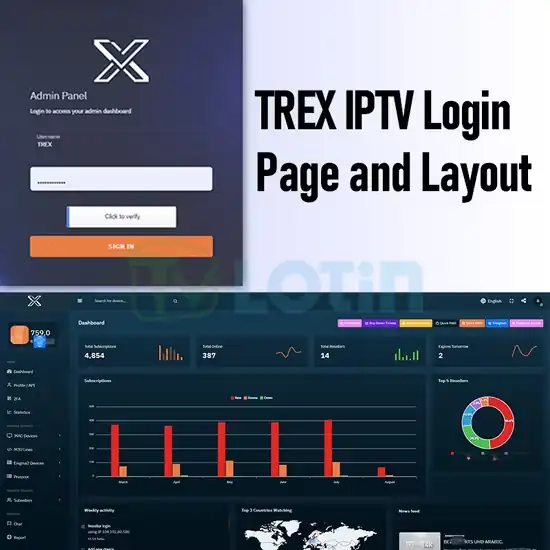
Why This Guide Works
Many tutorials stop at basic installation. This one goes deeper: it explains hidden settings, fallback server use, buffering strategies, and how to maintain a stable channel list. Whether you’re using an Android TV box, Fire TV, smart TV, or mobile device, the steps below are adapted for each platform and validated for 2025 standards.
Quick Prerequisites
- Stable internet: minimum 5 Mbps per HD stream, 15+ Mbps for 4K
- A compatible device (Android TV box, Fire TV/Stick, Smart TV, Android/iOS)
- Your Trex IPTV credentials (server URL, username, password)
- Optional: wired Ethernet connection and a quality router with QoS support
Step-by-Step Installation & Basic Configuration
Android TV / TV Box
- Enable “Install unknown apps” for your file manager or Downloader app.
- Download the official app or the APK provided by your service source (verify checksums if available).
- Install, open the app, and enter the Trex IPTV server URL plus login credentials.
- Allow the app to import channel lists and EPG (guide data).
- Perform a full playlist refresh after first login.
Fire TV / Firestick
- Install Downloader from the Amazon store, then fetch the APK and sideload.
- Follow the same login and refresh steps as Android TV.
- For better stability, disable automatic app updates from unknown sources.
iOS / Android (Mobile)
Use the official store app when available, or configure the provider’s M3U URL inside a compatible player. Mobile connections are more sensitive to network changes—use Wi-Fi or a strong mobile data plan for smooth playback.
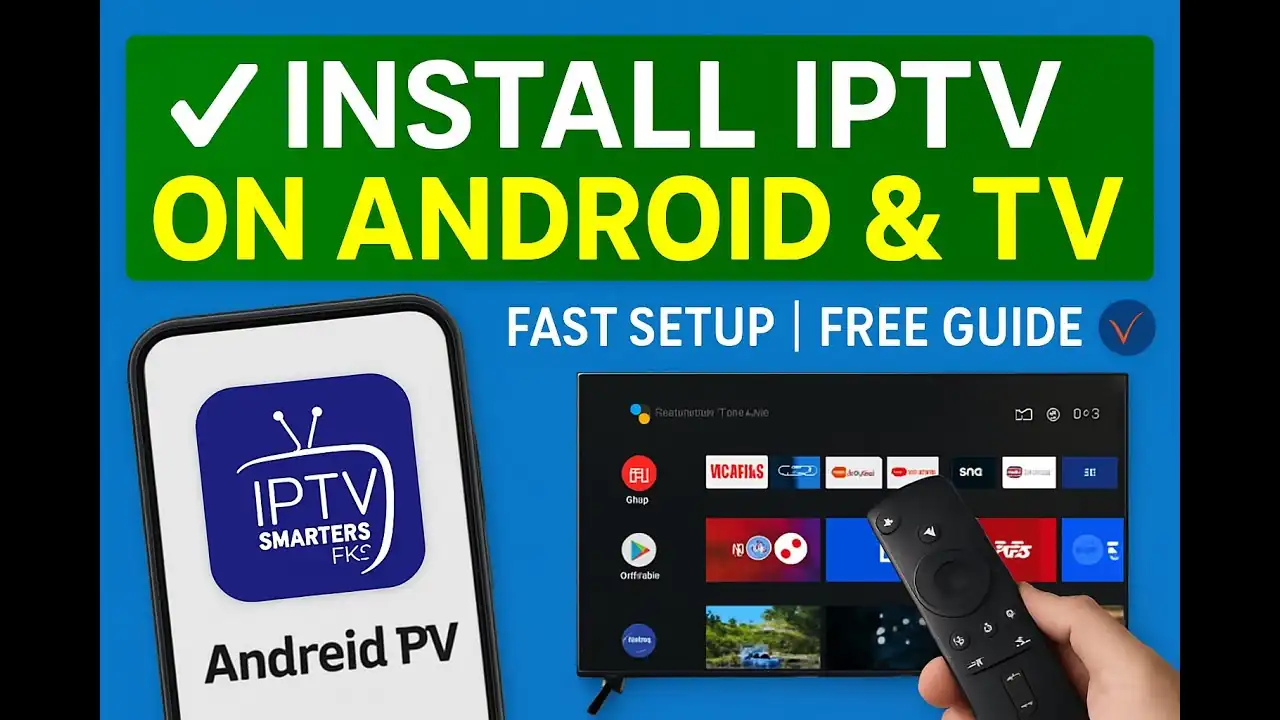
Unlocking Hidden Menus & Advanced Options
Many apps hide advanced controls behind long-presses or specific tap sequences. Common hidden options include:
- Advanced Buffering: choose conservative, moderate, or aggressive buffering to match your network stability.
- Alternate Stream URL: switch to a fallback server automatically when the primary server lags.
- Debug / Log Mode: helps diagnose playlist or stream errors.
- Regional Content Toggle: reveals geo-locked or bonus feeds provided by the server.
To access these, try long-pressing the settings icon, triple-clicking the remote’s back button, or checking the profile/about section for a hidden “Advanced” entry.
Performance Optimization Table
| Problem | Recommended Fix |
|---|---|
| Frequent buffering | Switch to wired Ethernet, lower video bitrate, enable adaptive streaming |
| Channel list not loading | Verify server URL and credentials, refresh playlist, check provider status |
| App crashes | Clear app cache, update or reinstall the app, test on another device |
| Audio lag | Adjust audio delay/AV sync, try a different audio output (PCM vs passthrough) |
| Slow EPG updates | Enable nightly auto-refresh and schedule a full refresh weekly |
Network & Router Tweaks That Help
- Prefer Ethernet over Wi-Fi for primary streaming devices.
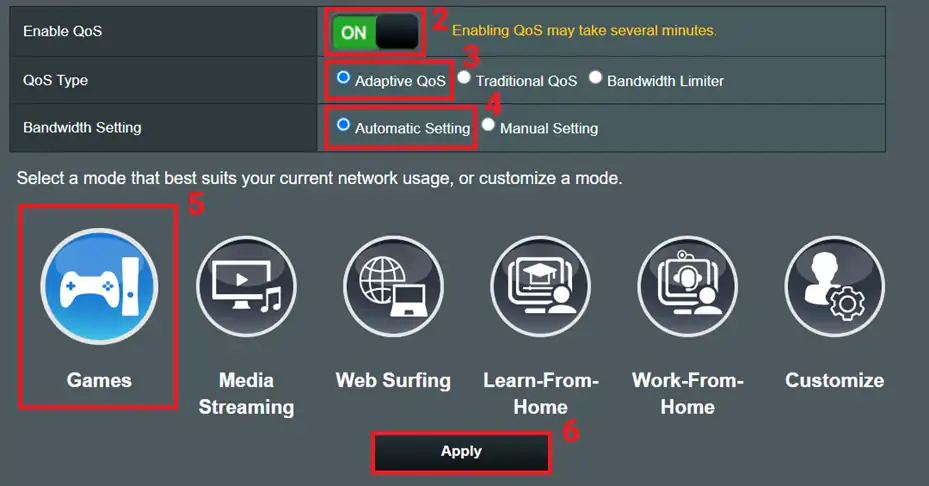
- Enable QoS on your router and prioritize the TV box or Firestick by IP/MAC.
- Disable background devices that consume bandwidth during prime viewing hours.
- If using Wi-Fi, use 5 GHz band and position router closer to the device.
Accessing Regional & Bonus Channels
Some providers include bonus regional feeds hidden behind settings or flags. These feeds usually require:
- Enabling a regional toggle in advanced settings
- Requesting activation from support (they may whitelist your account)
- Changing the EPG region to match the channel origin
Note: access depends on your subscription and provider policies. If you run Trex IPTV via a reseller, contact them for regional unlocks instead of repeatedly creating new accounts.
Common Errors & Clear Fixes
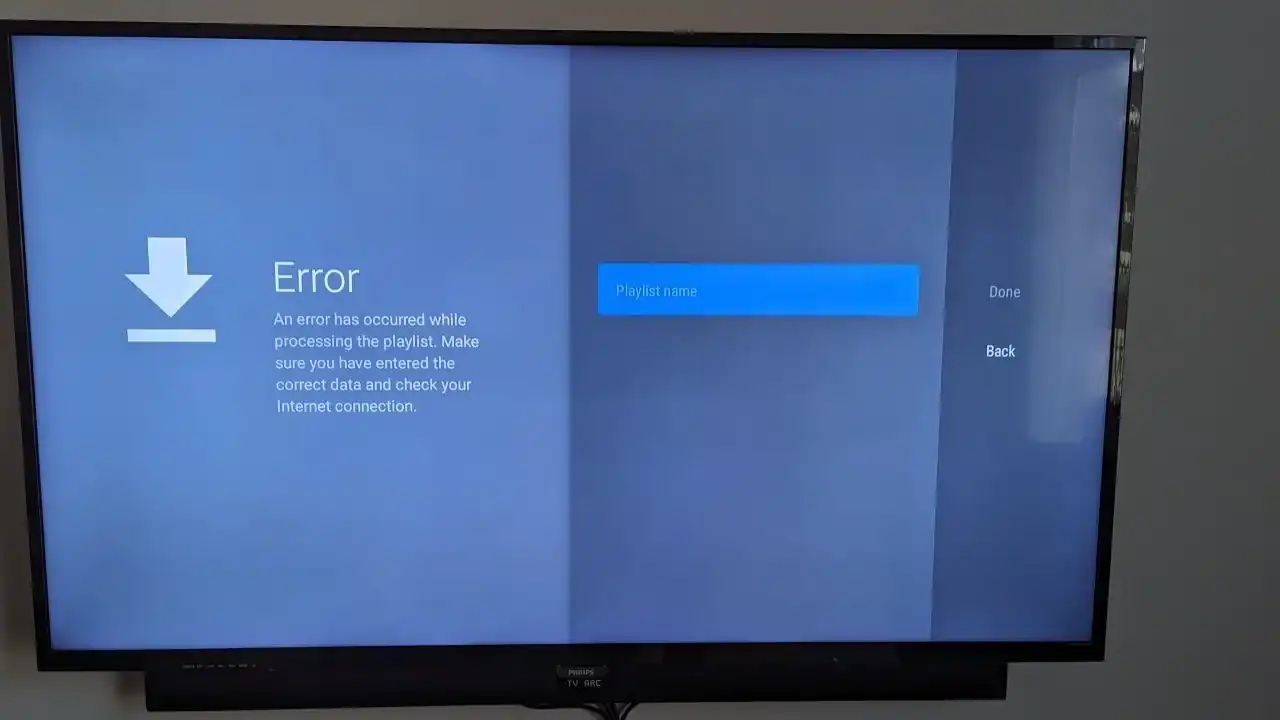
Error: “Playlist cannot be loaded”
Possible causes: expired link, provider outage, or malformed URL. Fix: re-enter the playlist URL exactly, check that your account is active, and try a test link on another device or player. If the problem persists, contact your provider.
Error: “Invalid credentials”
Case sensitivity matters. Recheck username and password, try a reset, and confirm there isn’t an extra space or newline copied from the provider email.
Error: Black screen or no audio
Clear cache, restart the device, check HDMI and audio settings, and test a different output format (stereo vs passthrough).
Safety, Legality & Best Practices
Using a service requires legal and ethical considerations. Always confirm that the streams you use are authorized. Avoid pirated playlists; they often break, carry malware risk, and can expose your network. For secure remote access and consistent geolocation, consider a reputable VPN with high speeds — but check provider terms before using one.
Why StreamIPTV.ca Can Help
If you want a vetted, supported solution, platforms like streamiptv.ca provide managed subscriptions, support for multiple devices, and guided activation. Using a trusted service reduces troubleshooting time and ensures your playlist refreshes regularly.
Advanced Tips for Power Users
- Set nightly auto-refresh for playlist and EPG to keep channel lists current.
- Use an app that supports multiple profiles and separate EPG sources per region.
- Record or mark favorite channels in-app for quicker access.
- Backup credentials and playlist URL in a secure password manager.
Conclusion
Configuring Trex IPTV correctly unlocks a smoother, richer streaming experience. Follow the steps above—install, access advanced menus, optimize network and app settings, and use the troubleshooting table to solve most issues. If you prefer a fully managed subscription with support, check providers like streamiptv.ca for professional help and fewer hassles.
FAQ
Is Trex IPTV legal to use?
Legality depends on the content and your jurisdiction. Use services that provide licensed streams and verify the provider’s rights. This guide focuses on technical setup and does not endorse unauthorized content access.
Can I use Trex IPTV on multiple devices at once?
Most subscriptions allow multiple concurrent streams. Confirm your plan’s device or simultaneous-stream limits with the provider to avoid login conflicts.
How often should I refresh the channel list?
Enable auto-refresh nightly and perform a manual refresh weekly or after provider-side updates to ensure EPG and channel availability are current.
Why do I still get buffering with high-speed internet?
Buffering can be caused by server-side overload, poor routing from your ISP to the server, or device performance issues. Try using Ethernet, switching to an alternate stream URL (if available), or contacting your provider to switch servers.
Should I use a VPN with Trex IPTV?
A VPN can help with geolocation or ISP throttling issues, but it may also add latency. Choose a high-performance VPN and verify that using it doesn’t violate your provider’s terms of service.
Quick summary
- Choose an IPTV app based on your device (Smart TV, Fire TV, Android TV, iPhone/iPad).
- To reduce buffering: test Ethernet first, then check router placement and app buffer settings.
- When contacting support: include device model + app name + exact time of issue for fastest resolution.







Comments (0)
Leave a comment