 How to Buy Crypto (ShakePay)
FAQ for IPTV in Canada
IPTV Canada FAQ — Frequently Asked Questions
Everything you need to know about IPTV Canada — how to watch IPTV, choose the right IPTV app, set up live channels on any device, fix buffering, and manage your account. Our FAQ covers IPTV Canada.
What is IPTV and how does StreamIPTV work in Canada?
IPTV (Internet Protocol Television) delivers live TV channels over your internet connection — no satellite dish, no cable box required.
With StreamIPTV, you install a free compatible app on your device (Fire TV, Smart TV, iPhone, Android, Windows…), sign in with the credentials you receive after purchase, and watch immediately.
What makes a good IPTV experience in Canada:
With StreamIPTV, you install a free compatible app on your device (Fire TV, Smart TV, iPhone, Android, Windows…), sign in with the credentials you receive after purchase, and watch immediately.
What makes a good IPTV experience in Canada:
- Fast channel switching — feels like real TV
- Clean Canadian-first categories, organized by genre
- EPG (TV guide) that stays updated
- Stable streams even during Canadian prime time
How do I choose the right IPTV provider in Canada?
Ignore "10,000 channels" claims — here's what actually matters:
- Stability at prime time: evenings and big sports nights are the real test.
- Canadian-first content: local networks, organized properly.
- Device compatibility: Firestick, Smart TV, iPhone, Android, Windows — with guided setup.
- Real support: ask for your device + ISP, not copy-paste replies.
- Transparent pricing: no hidden add-ons, no auto-renewal traps.
- Free trial: a reliable provider lets you test before you pay.
How do I get started with StreamIPTV in Canada?
Setup is fast — under 10 minutes on any device:
Tell us your device and we'll send the exact guide for your setup.
- 1. Choose your plan and complete checkout.
- 2. Receive your M3U / Xtream credentials by email (check spam if needed).
- 3. Install a free compatible app — TiviMate, Smarters Pro, XCIPTV, GSE Player.
- 4. Sign in with your credentials and refresh channels.
- 5. Start watching.
Tell us your device and we'll send the exact guide for your setup.
Is activation instant after payment?
Yes — credentials are sent to your email within 1–3 minutes of payment.
If you don't see the email:
If you don't see the email:
- Check spam/junk and your Promotions tab.
- Make sure the email was entered correctly at checkout.
- If it's been over 5 minutes, contact support — we'll fix it immediately.
How is IPTV different from on-demand streaming services?
On-demand streaming services are library-based — you pick what to watch and when.
IPTV delivers live channels in real time — news, sports, and local Canadian content, exactly like cable but over your internet connection at a fraction of the price. Many households use both.
IPTV delivers live channels in real time — news, sports, and local Canadian content, exactly like cable but over your internet connection at a fraction of the price. Many households use both.
What devices does StreamIPTV support?
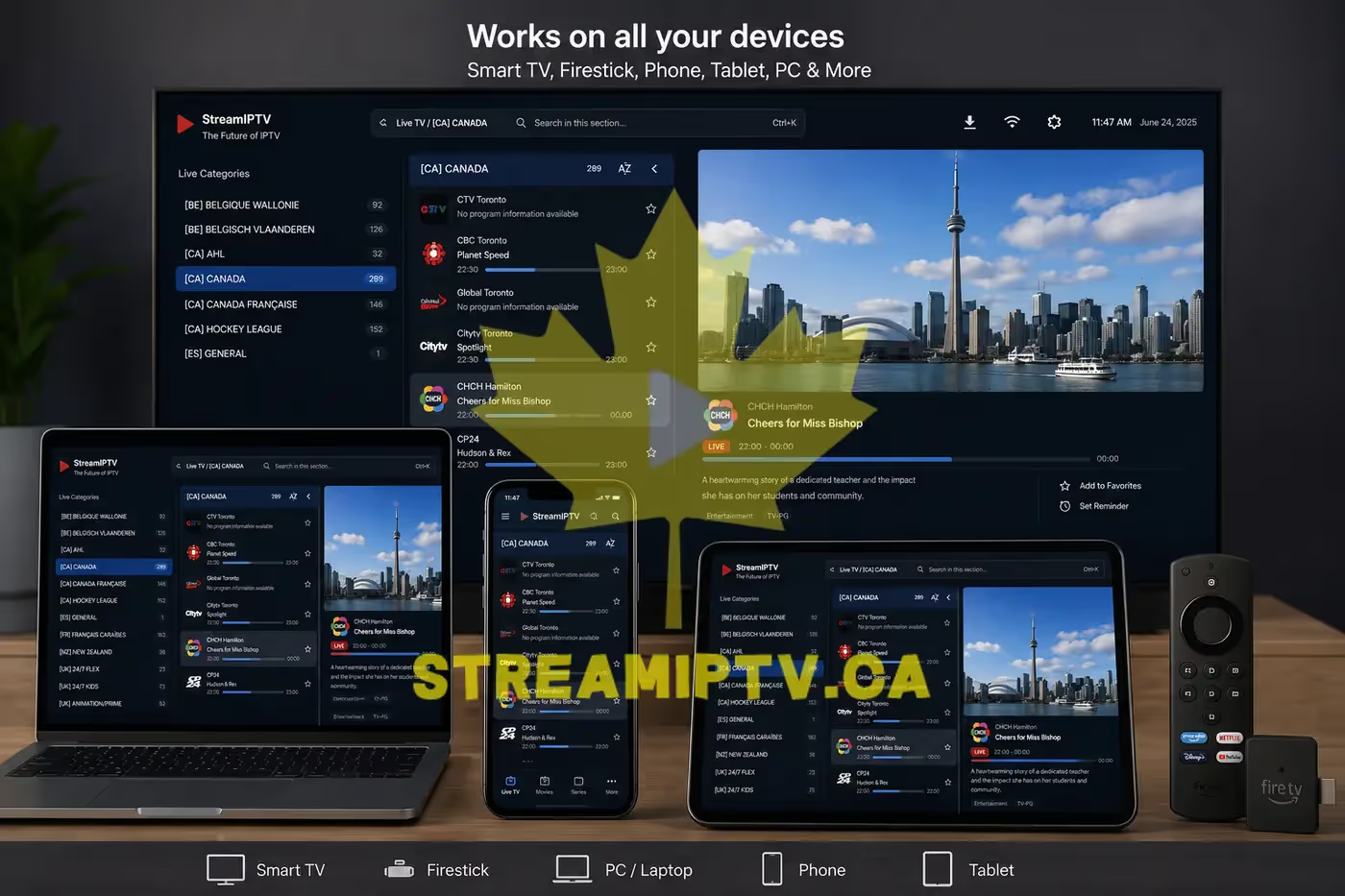
Virtually every screen you own:
Tell us your exact device model and we'll confirm compatibility and send the right app.
- Streaming devices: Fire TV Stick, Fire TV Cube, Apple TV, Chromecast with Google TV, Roku (via app or browser workaround)
- Smart TVs: Samsung, LG, Sony, Android TV models
- Mobile: iPhone, iPad, Android phones and tablets
- Computers: Windows, macOS
- Boxes: Nvidia Shield, MAG boxes, generic Android TV boxes
Tell us your exact device model and we'll confirm compatibility and send the right app.
Can I try StreamIPTV before cancelling my cable or satellite plan?
Yes — this is the recommended approach. Keep your current cable/satellite plan active, start the free 24-hour trial, and compare channel quality, stability, and pricing side by side on your own TV before deciding to switch.
Do I need to sign a contract or long-term commitment?
No contract, ever. You choose a plan duration (from a few months up to longer terms), pay once, and use the service for that period. There's no auto-renewal and no cancellation fee — when your plan ends, you simply decide whether to renew.
What's included in the free 24-hour IPTV trial?
The free trial gives you full access to the StreamIPTV service for 24 hours — live TV channels, sports, movies on demand, and the EPG guide — on your actual device and home network.
No credit card required.
No credit card required.
How do I request my free trial?
Visit the free trial page and follow the steps. You'll receive test credentials within minutes — no payment information needed.
The trial lasts 24 hours and covers the full StreamIPTV channel lineup so you can test on your own device.
The trial lasts 24 hours and covers the full StreamIPTV channel lineup so you can test on your own device.
Does the free trial automatically become a paid subscription?
No. The trial expires after 24 hours with no charge and no auto-renewal. To continue, you simply choose a paid plan when you're ready.
We never charge you without your explicit action.
We never charge you without your explicit action.
What happens after my free trial ends if I don't want to continue?
Nothing happens — the trial simply expires after 24 hours. You're not charged, no card was on file, and no further action is needed. If you decide to subscribe later, just choose a plan whenever you're ready.
Can I request a second free trial?
1 trial per person, 24 hours (Standard & Premium by day, Premium at night with automatic activation). If your first trial had a technical issue (bad Wi-Fi day, wrong app, etc.) that prevented a fair test, contact support — we're usually happy to extend a short retest so you can judge the service properly.
Is a free IPTV trial the same as a demo video?
No. A demo is usually a pre-recorded video or a set of screenshots — you never actually log in. StreamIPTV's free trial gives you your own working credentials and 24 hours of real access on your own device, so you judge stream quality and channel selection yourself instead of taking a provider's word for it.
Do I need a satellite dish or cable box to use StreamIPTV?
No. StreamIPTV runs on your existing internet connection — no dish, no cable installation, no technician visit needed.
- Best setup: Ethernet cable from router to your streaming device.
- Good alternative: 5GHz Wi-Fi (less congestion than 2.4GHz).
- Keep your router firmware updated and place it close to your TV for best results.
What internet speed do I need for IPTV in Canada?
Stability matters more than raw speed. A steady 15 Mbps beats an unstable 100 Mbps connection for IPTV.
Most buffering in Canadian homes is a Wi-Fi placement issue — not an internet speed issue. If speed tests look fine but streaming is choppy, try Ethernet or move the router closer.
- SD: 3–5 Mbps
- HD (720p / 1080p): 8–16 Mbps
- 4K: 25 Mbps+ (stable)
Most buffering in Canadian homes is a Wi-Fi placement issue — not an internet speed issue. If speed tests look fine but streaming is choppy, try Ethernet or move the router closer.
Which IPTV apps work best for Firestick, Smart TV, and iPhone?
All of these are free and work with StreamIPTV:
Tell us your device model and we'll recommend the exact app and send the setup guide.
- Firestick / Android TV: TiviMate (most popular), Smarters Pro, XCIPTV
- Samsung / LG Smart TV: Smart IPTV
- iPhone / iPad: GSE Player, Smarters Pro
- Windows / Mac: VLC, IPTV Smarters Web
- Android phone: TiviMate, IPTV Smarters
Tell us your device model and we'll recommend the exact app and send the setup guide.
What should I do if a channel buffers or stutters?
Try these steps in order:
- 1. Switch to another channel to check if the issue is isolated.
- 2. Close and reopen the app.
- 3. Reboot your router (unplug 20–30 seconds).
- 4. Switch from 2.4GHz Wi-Fi to 5GHz, or try Ethernet.
- 5. Clear the app cache on Android or Firestick.
My IPTV stopped working suddenly — what should I do?
- 1. Close and reopen the IPTV app.
- 2. Restart your streaming device.
- 3. Reboot your router.
- 4. Verify your subscription hasn't expired.
- 5. Make sure only one device is using your account at a time.
Can I watch StreamIPTV while traveling outside Canada?
Usually yes — as long as you have a stable internet connection. Travelers commonly use StreamIPTV on phones, tablets, or a portable Firestick.
- Use hotel Wi-Fi with good signal or a reliable mobile hotspot.
- For HD, aim for a stable 15–25 Mbps connection.
- A reputable VPN connected to a Canadian server can help if you face restrictions.
How do I switch from my current IPTV provider to StreamIPTV?
You don't need to reinstall everything. Two options:
Fast switch: keep the same IPTV player app and replace the old M3U link or Xtream credentials with the StreamIPTV ones you receive.
Clean setup (recommended): install a fresh recommended app for your device and sign in from scratch — better stability and no leftover cache issues.
Fast switch: keep the same IPTV player app and replace the old M3U link or Xtream credentials with the StreamIPTV ones you receive.
Clean setup (recommended): install a fresh recommended app for your device and sign in from scratch — better stability and no leftover cache issues.
What is the difference between M3U and Xtream Codes?
Both are ways to connect your IPTV app to StreamIPTV:
M3U: a single playlist URL link you paste into your app. Simple and universal.
Xtream Codes: uses a server URL + username + password. More stable for large channel lists, better for apps like TiviMate.
StreamIPTV supports both. Most modern apps support both formats — Xtream Codes is generally recommended.
M3U: a single playlist URL link you paste into your app. Simple and universal.
Xtream Codes: uses a server URL + username + password. More stable for large channel lists, better for apps like TiviMate.
StreamIPTV supports both. Most modern apps support both formats — Xtream Codes is generally recommended.
How do I set up StreamIPTV on Roku?
Roku doesn't officially allow generic M3U/Xtream apps, so the two reliable options are:
Message support with "Roku" and we'll walk you through the exact steps for your TV model.
- Cast from phone: mirror your Android/iPhone IPTV app to the Roku via screen casting.
- Add a cheap Fire TV Stick or Android box: plug it into a spare HDMI port for full native app support.
Message support with "Roku" and we'll walk you through the exact steps for your TV model.
How do I set up StreamIPTV on Apple TV?
Install GSE Smart IPTV or IPTV Smarters Pro directly from the tvOS App Store, open the app, and enter your Xtream Codes credentials (server URL, username, password) or your M3U link. No sideloading or jailbreak required.
Does StreamIPTV work on Android TV boxes like Nvidia Shield or MAG boxes?
Yes. Any Android TV box (Nvidia Shield, generic MXQ/H96 boxes) can run TiviMate, Smarters Pro, or XCIPTV from the Google Play Store or via sideload. Dedicated MAG boxes are also supported using the portal URL and MAC address we provide — StreamIPTV works with essentially any standard IPTV-capable hardware.
What if my Smart TV doesn't support IPTV apps directly?
Older or budget Smart TVs without an app store can still work great — just add an inexpensive external device:
This gives you full app support regardless of your TV's age.
- Fire TV Stick (most affordable, plugs into HDMI)
- Android TV box (more power, more app choice)
- Apple TV (if you're in the Apple ecosystem)
This gives you full app support regardless of your TV's age.
Is the TV guide (EPG) included?
Yes — an EPG (Electronic Program Guide) is included for most channels so you can browse schedules and see what's playing now.
If guide data looks empty or shows wrong info:
If guide data looks empty or shows wrong info:
- Refresh EPG in your app settings.
- Verify your device time zone matches your Canadian province.
- Clear app cache and reload.
Can I use my subscription on multiple devices at the same time?
Yes. 1 connection = 1 account: it can be installed on any number of devices — Smart TV, phone, tablet, Fire TV Stick, and more — but it streams on only one of them at the same time. If everyone watches together on the same screen, 1 connection is enough. If people watch separately, on different devices, at the same time, add one connection per person at checkout.
How are channels organized in the app?
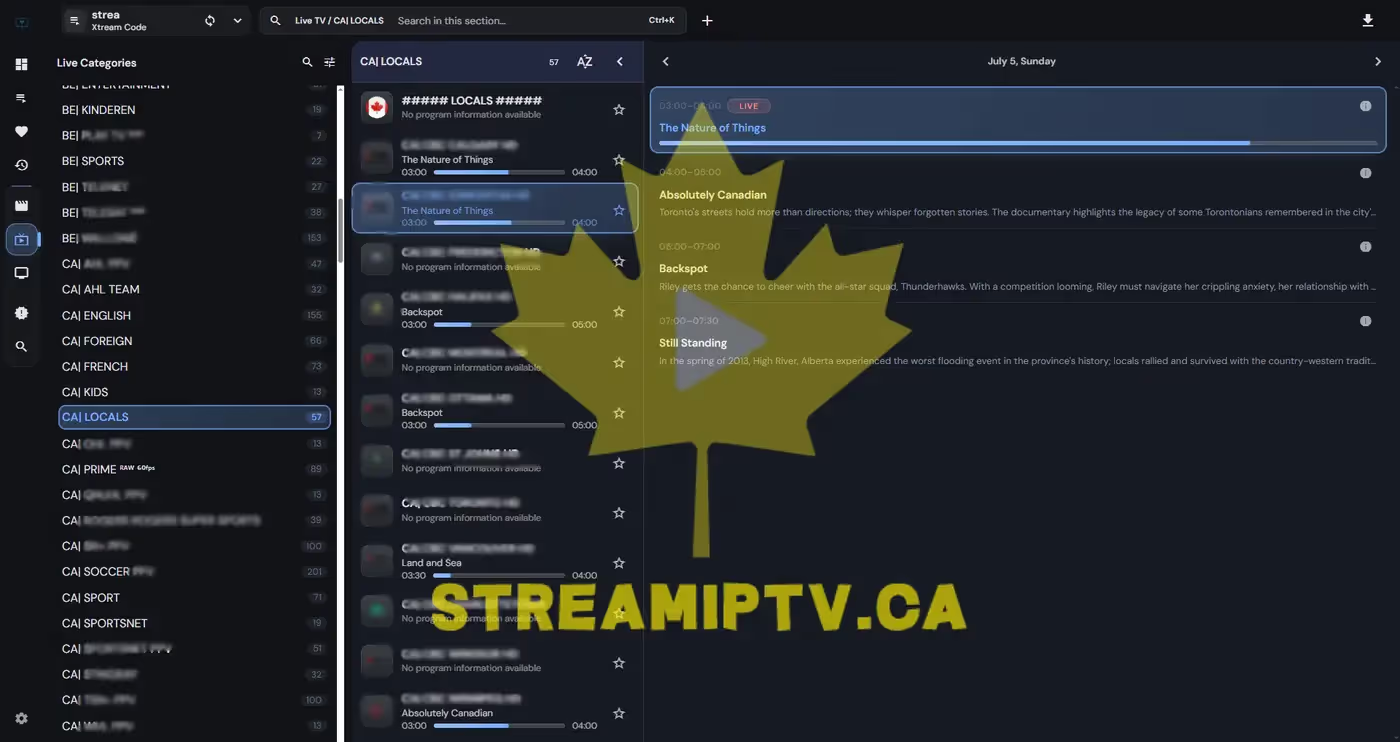
Channels are grouped into clear categories — sports, news, entertainment, documentaries, and kids programming — so you can find what you want fast instead of scrolling through one giant list.
Are movies and series (VOD) included with my plan?
Yes — VOD (Video on Demand) content including movies and series is included with every StreamIPTV subscription. Content is organized by category in your IPTV player app and updated regularly.
Can I watch local Canadian news channels?
Yes — StreamIPTV includes major Canadian English-language news channels, covering national, regional, and business news. Check your channel list after activating your trial.
Do I need a VPN to use IPTV in Canada?
A VPN is not required for most Canadian users. StreamIPTV works fine without one on major Canadian ISPs (Bell, Rogers, Vidéotron, Telus, Shaw).
A VPN can help when traveling abroad or if your ISP has routing issues. If you use one, choose a reputable provider and connect to a nearby Canadian server — a slow VPN can increase buffering.
A VPN can help when traveling abroad or if your ISP has routing issues. If you use one, choose a reputable provider and connect to a nearby Canadian server — a slow VPN can increase buffering.
Is major sports coverage included?
Yes — sports is one of StreamIPTV's strongest categories, covering hockey, football, basketball, baseball, and international soccer, plus regional Canadian sports networks. Coverage is included in every plan at no extra cost.
Does StreamIPTV include pay-per-view (PPV) style events?
Major pay-per-view style events (combat sports, exclusive specials) are typically available through our sports channels at no extra charge — unlike traditional cable where each event is billed separately. Availability can vary by event; ask support if you have a specific event in mind.
Are kids' channels available?
Yes — a dedicated kids/family category is included with cartoons and children's programming, organized separately for easy browsing on shared family TVs.
Can I see the full channel list before subscribing?
The most accurate way is the free 24-hour trial — you get full access to browse the actual live channel list and EPG on your own device. This is more reliable than a static list, since live channel lineups are updated regularly.
What's the difference between Standard and Premium IPTV plans?
Standard streams from a 15,000+ live channel library in HD/FHD — great for most households. Premium unlocks the full 40,000+ channel library plus 4K quality on supported channels. See the subscription page for full plan details and pricing.
What payment methods do you accept?
We accept Visa, Mastercard, and PayPal. All transactions are encrypted and PCI-compliant.
You pay once for the duration you select — no automatic renewals without your consent. If checkout fails, contact support and we'll help you complete the order.
You pay once for the duration you select — no automatic renewals without your consent. If checkout fails, contact support and we'll help you complete the order.
Do you offer a refund if I'm not satisfied?
Yes — a 7-day money-back guarantee applies on every plan. If the service doesn't meet your expectations in the first 7 days, contact support for a refund.
We recommend using the free 24-hour trial first to be confident before purchasing. Most issues are resolved quickly once we know your device and setup.
We recommend using the free 24-hour trial first to be confident before purchasing. Most issues are resolved quickly once we know your device and setup.
How do I renew my IPTV subscription?
Contact our support team before your plan expires and we will process the renewal. You can renew the same plan or upgrade to a different duration or connection count.
Renewal pricing is identical to the original plan. You'll keep the same credentials — no reinstallation needed.
Renewal pricing is identical to the original plan. You'll keep the same credentials — no reinstallation needed.
What days is customer support available?
StreamIPTV support is available every day of the week via WhatsApp, email, and live chat.
How do I avoid IPTV scams and choose a trustworthy provider?
Look for these signs of a trustworthy IPTV provider:
- Free trial before payment — real providers let you test first.
- Transparent pricing — no hidden add-ons or confusing connection fees.
- Real troubleshooting — they ask for your device model and ISP, not just send copy-paste replies.
- Clear refund policy — a money-back guarantee shows confidence in the service.
- Avoid "too cheap" services — extremely low prices with no trial usually signal poor infrastructure.
How much does StreamIPTV cost?
Pricing depends on the plan duration and number of connections you choose — see current pricing on the subscription page. There are no hidden fees: the price you pay at checkout is the price you pay, with no automatic renewal charges.
Can I add more connections to my plan later?
Yes. Contact support with your account email and how many extra connections you need — we'll add them and prorate the cost for your remaining subscription period.
How fast does support usually respond?
Most WhatsApp and email messages are answered within the hour, and almost always the same day. Include your device model and the issue you're seeing for the fastest resolution.
Do you offer reseller or bulk pricing?
Yes — visit the reseller page for panel access, wholesale pricing, and dashboard details if you want to resell StreamIPTV to your own clients.
How do IPTV reseller credits work?
Credits are what a reseller spends to activate a client's subscription. The exact ratio depends on the tier — 1 credit covers 1 year of Standard service or 1 month of Premium service — and credits never expire once purchased. See the reseller program page for the full breakdown and a profit estimator.
Can I run sub-resellers under my own IPTV reseller account?
Yes — both reseller dashboards (Trex and Lion) support creating sub-reseller accounts underneath your own, so you can build a small team while keeping control of your own credit balance. Full details are on the reseller program page.
Is IPTV legal in Canada?
IPTV as a technology is legal — it's the same delivery method used by Bell Fibe TV, Vidéotron Helix, and other major Canadian telecoms.
Legality depends on whether the content being delivered is properly licensed in your jurisdiction. Canadian regulations under the Broadcasting Act apply to content distribution. Users should verify a provider's compliance and access content in line with applicable Canadian law.
This is general information, not legal advice.
Legality depends on whether the content being delivered is properly licensed in your jurisdiction. Canadian regulations under the Broadcasting Act apply to content distribution. Users should verify a provider's compliance and access content in line with applicable Canadian law.
This is general information, not legal advice.
Is there any risk to my device or network when using IPTV?
From a technical standpoint, using an IPTV service carries no inherent risk to your device or network — it works exactly like any other video streaming application on your phone or TV.
As with any service, use reputable providers that have transparent terms of service and privacy policies.
As with any service, use reputable providers that have transparent terms of service and privacy policies.
What personal data does StreamIPTV collect?
StreamIPTV collects only the information required to process your subscription and provide support:
We do not sell personal data to third parties. See our Privacy Policy for full details.
- Email address (for credentials and support communication)
- Payment information (processed securely via our payment provider — we do not store card numbers)
We do not sell personal data to third parties. See our Privacy Policy for full details.
Do you keep logs of what I watch?
StreamIPTV does not track or sell your individual viewing history. Basic technical connection data (needed to keep streams stable and prevent account sharing abuse) may be processed, but it is not used for advertising or shared with third parties.
Can I cancel anytime?
Since there's no contract or auto-renewal, there's nothing to formally "cancel" — your plan simply runs until it expires, and you decide separately whether to renew. If you're within the first 7 days and want a refund instead, contact support.
What happens to my data if I stop using the service?
Your account access simply ends when your plan expires. We retain the minimum billing/support records required for legitimate business and legal purposes; you can request deletion of your personal data at any time per our Privacy Policy.
No matching questions found.
Try a different keyword, or contact support directly.