
How to Install IPTVnator on Windows (Free & Open-Source IPTV Player)
Learn how to install IPTVnator on Windows and watch IPTV using a free open-source IPTV player. Follow this step-by-step guide to download, install, and start streaming IPTV channels.
Slideshow Mode
Follow each step fullscreen. Swipe, drag or use ←→ keys.
Start
Visit the IPTVnator GitHub Page : https://github.com/4gray/iptvnator
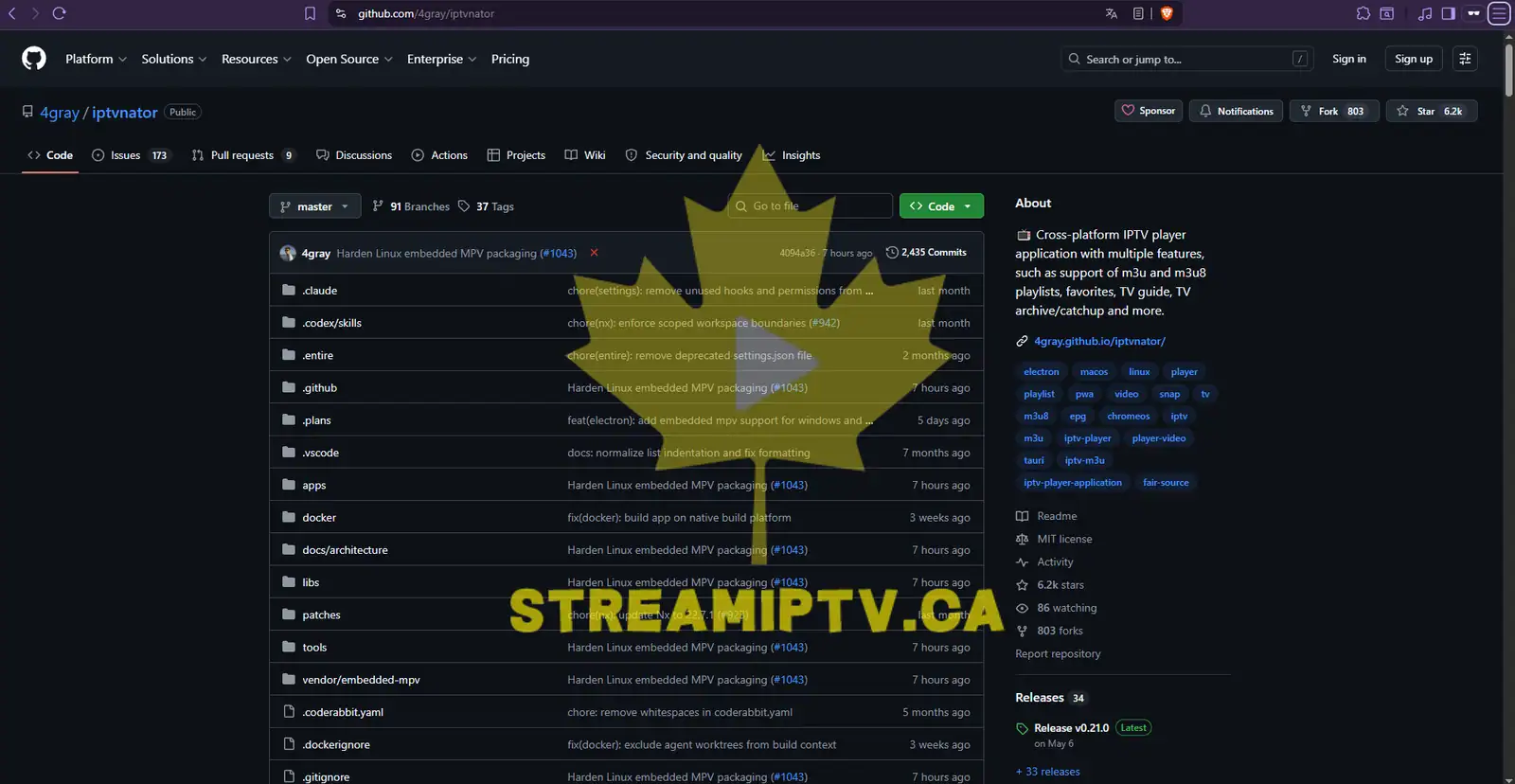
Open your web browser and visit the official IPTVnator GitHub repository to access the latest Windows release. link : https://github.com/4gray/iptvnator
Open the Latest Release
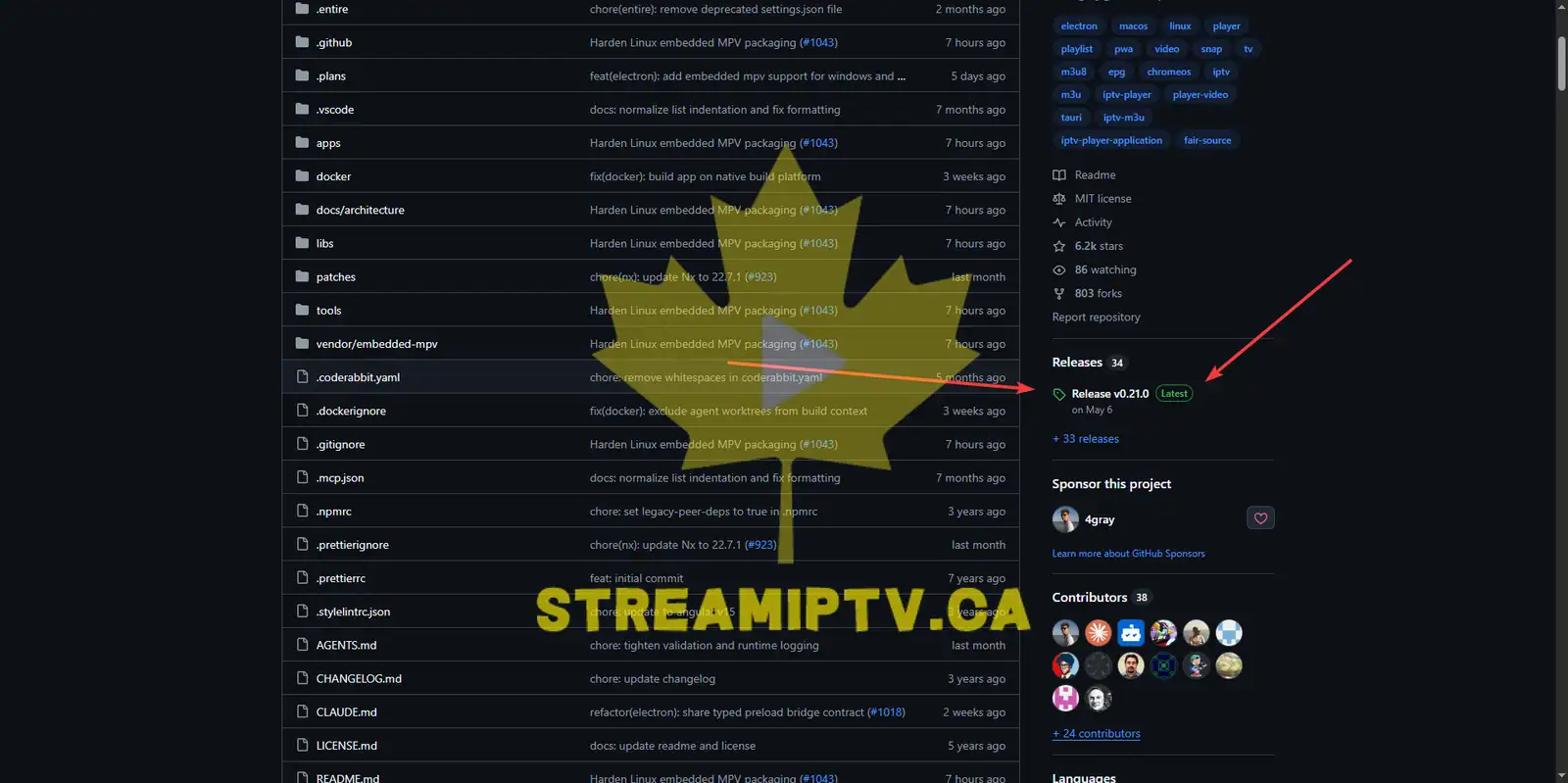
Navigate to the Releases section and open the most recent IPTVnator release available for download.
Download IPTVnator for Windows
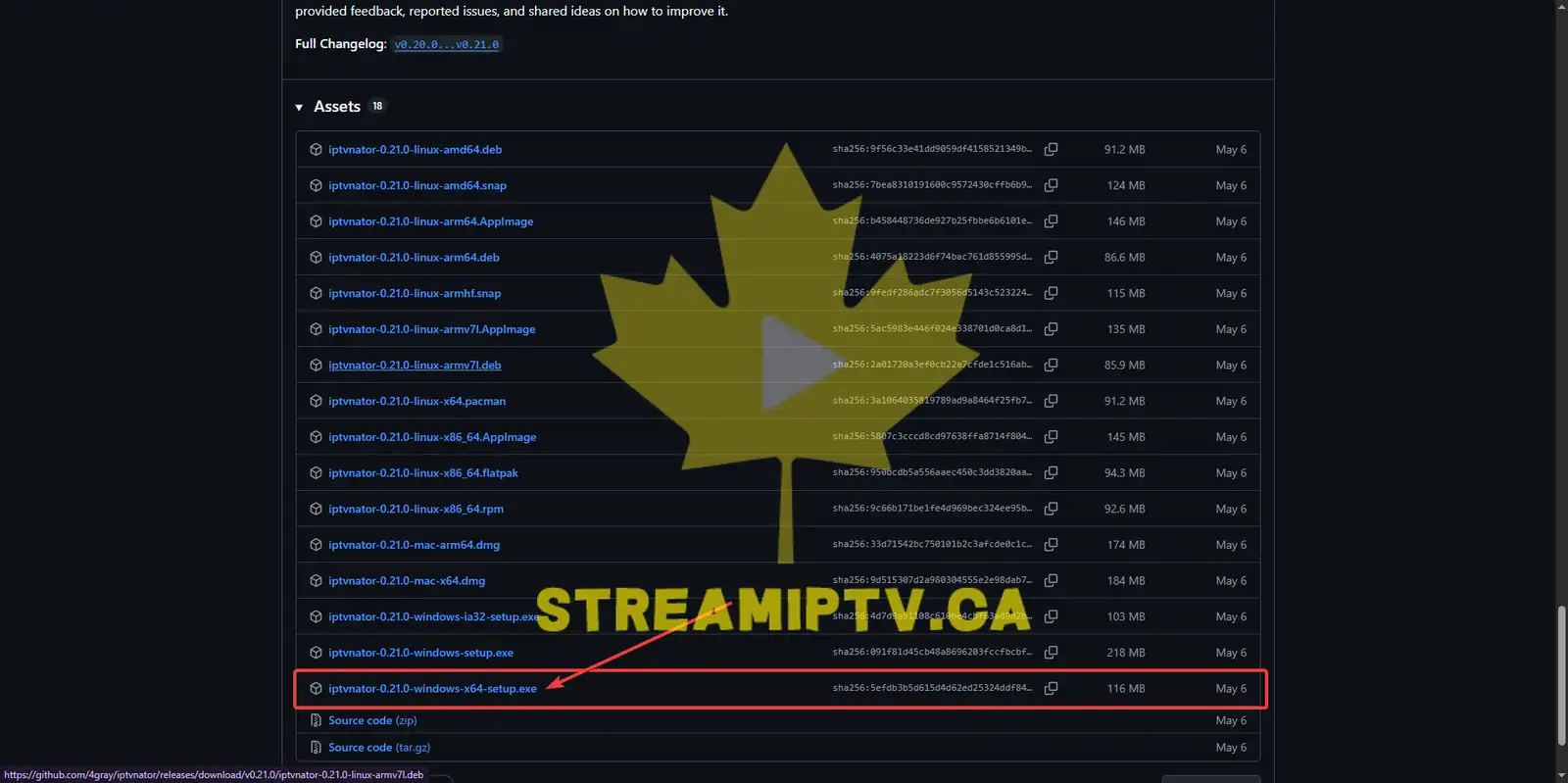
Download the Windows installer (.exe) from the Assets section of the latest release.
Run the Installer ( Auto installation )
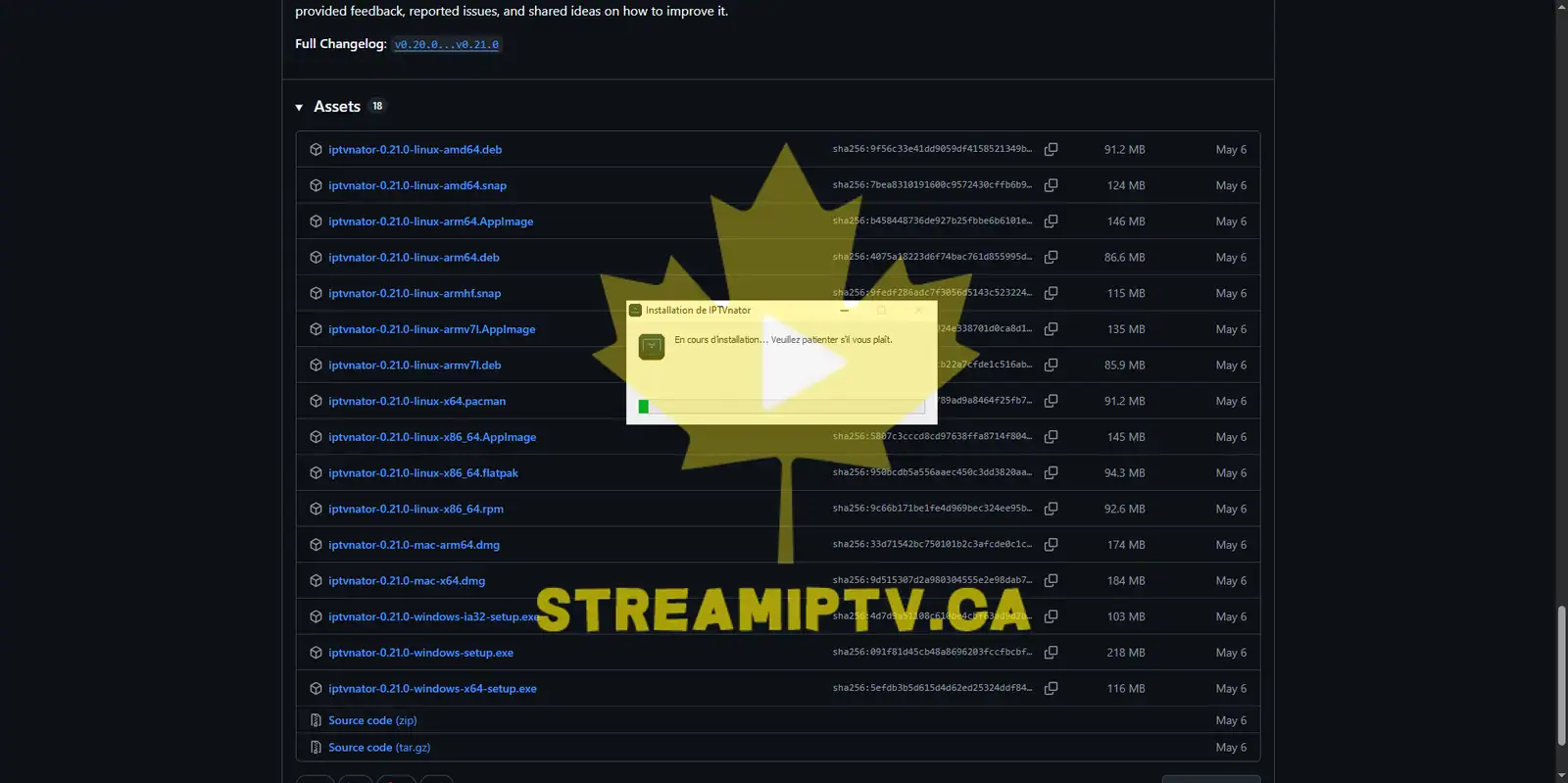
Locate the downloaded installer in your Downloads folder and double-click it to start the installation process.
Wait until IPTVnator launches automatically
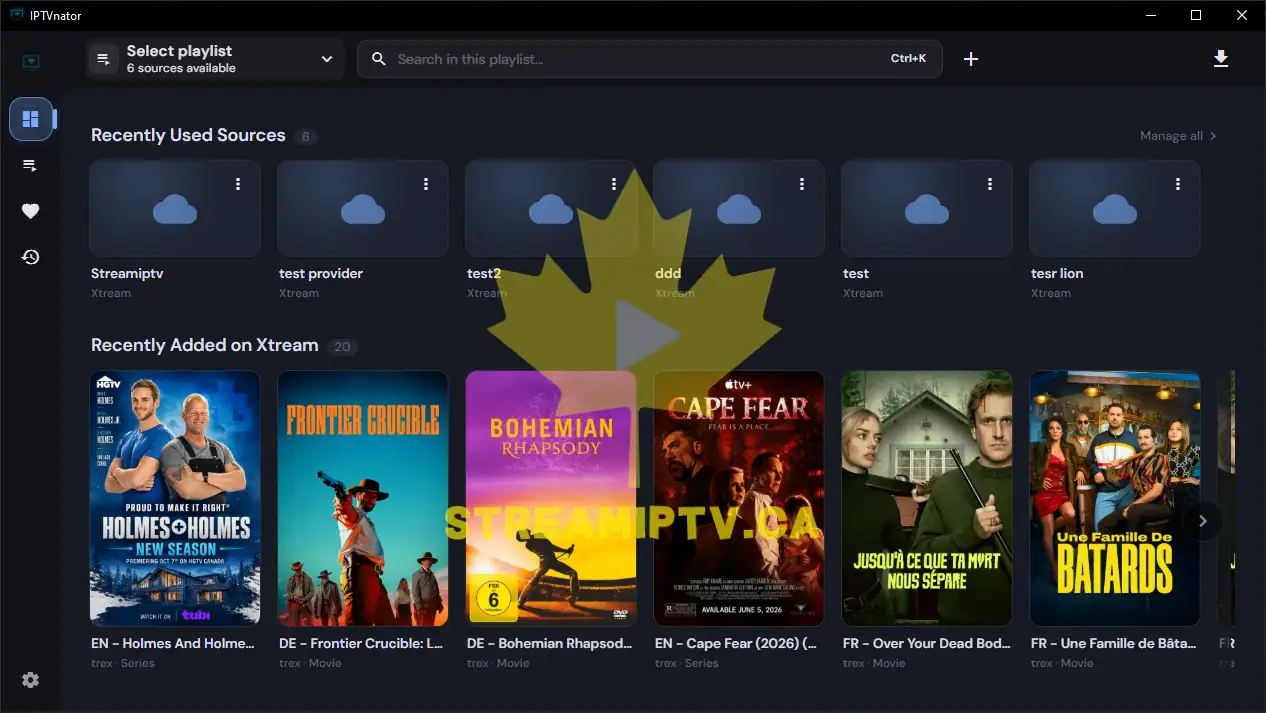
After the installation is complete, IPTVnator will launch automatically. You are now ready to configure the application for the best streaming experience.
Configure VLC as the Video Player
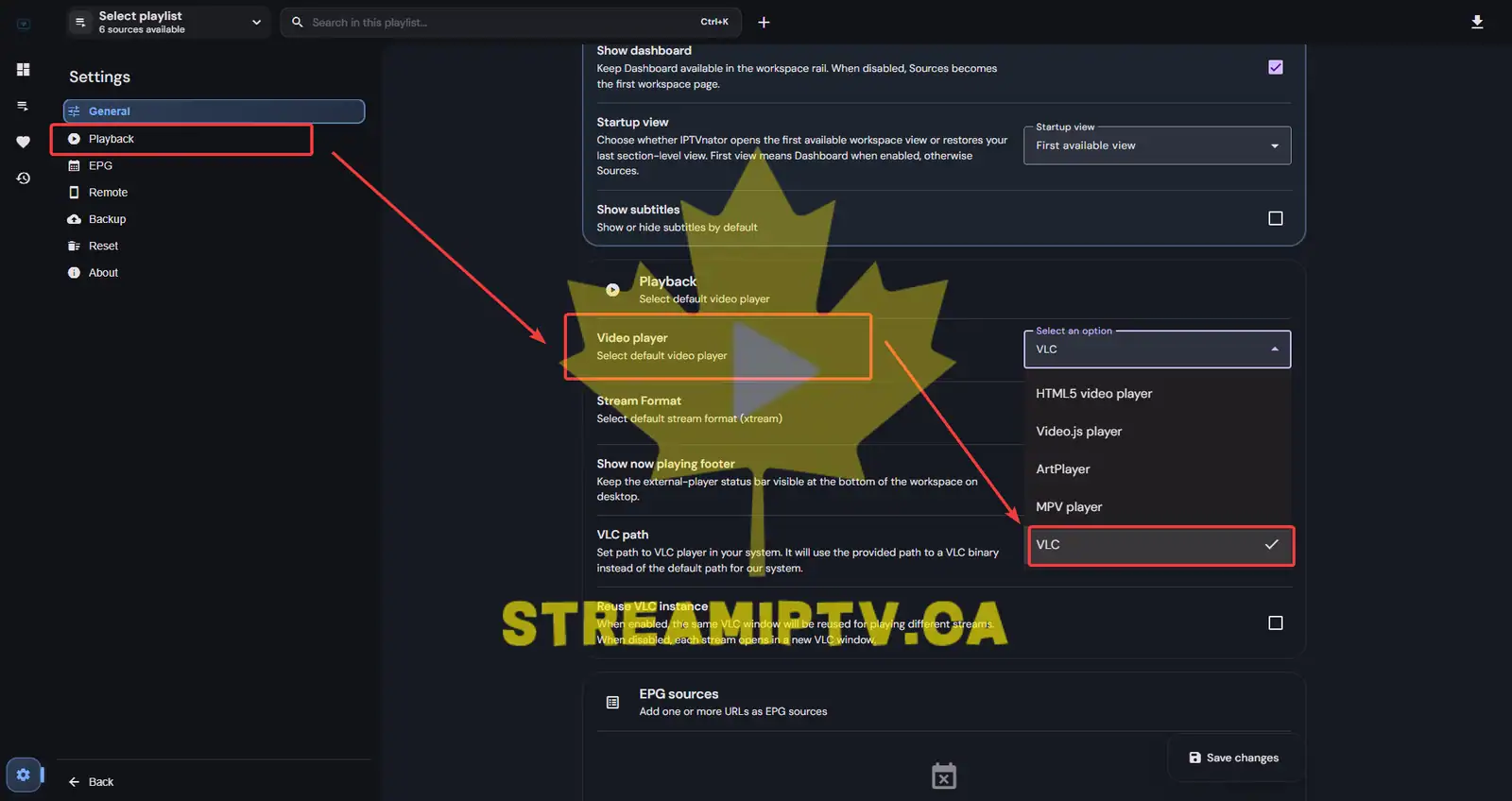
Click Settings and open the Playback section. Change the Video Player option to VLC.
Set the VLC Path
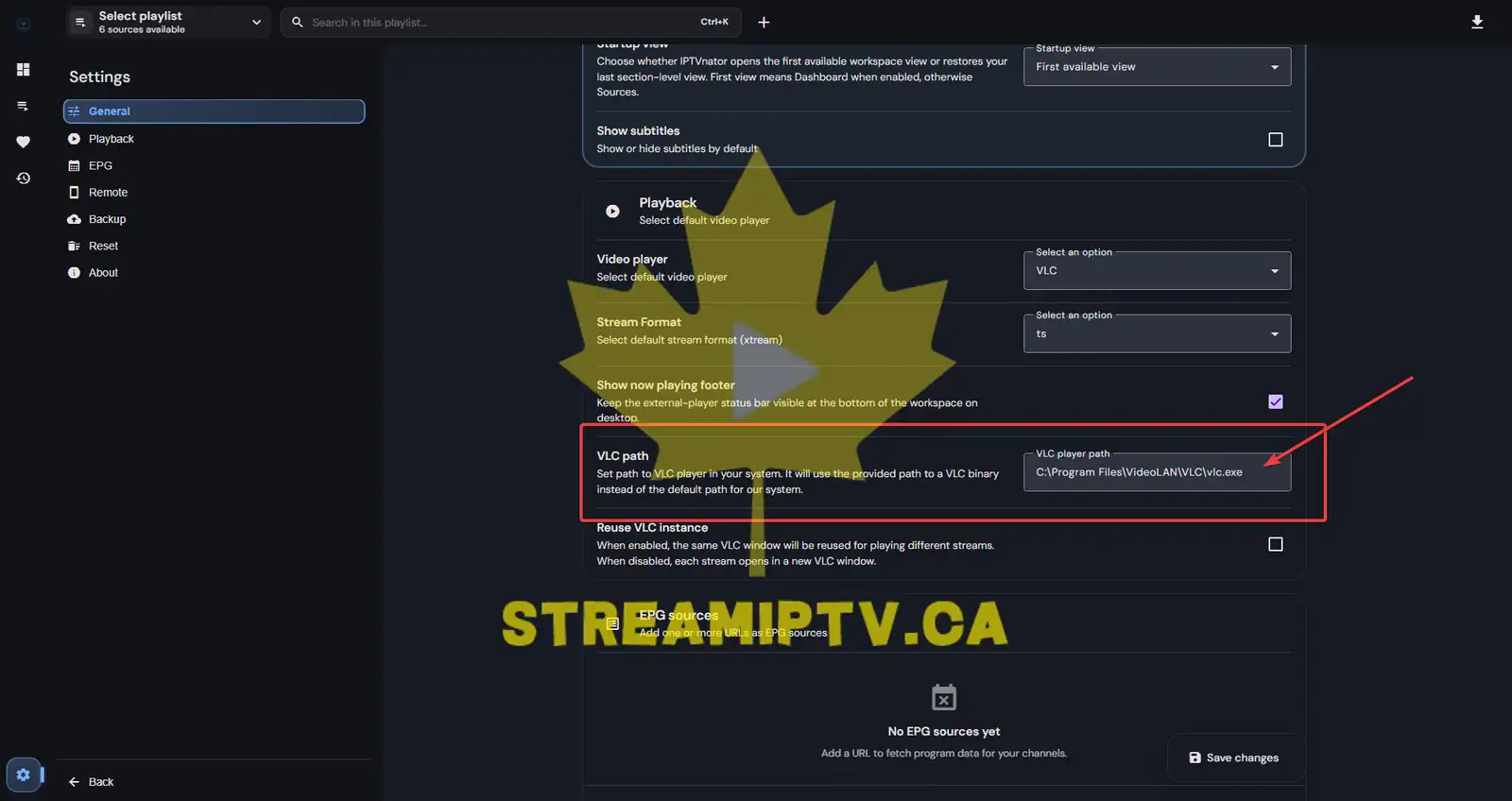
In the VLC Path field, enter the following path exactly: C:\Program Files\VideoLAN\VLC\vlc.exe
Enable Reuse VLC Instance
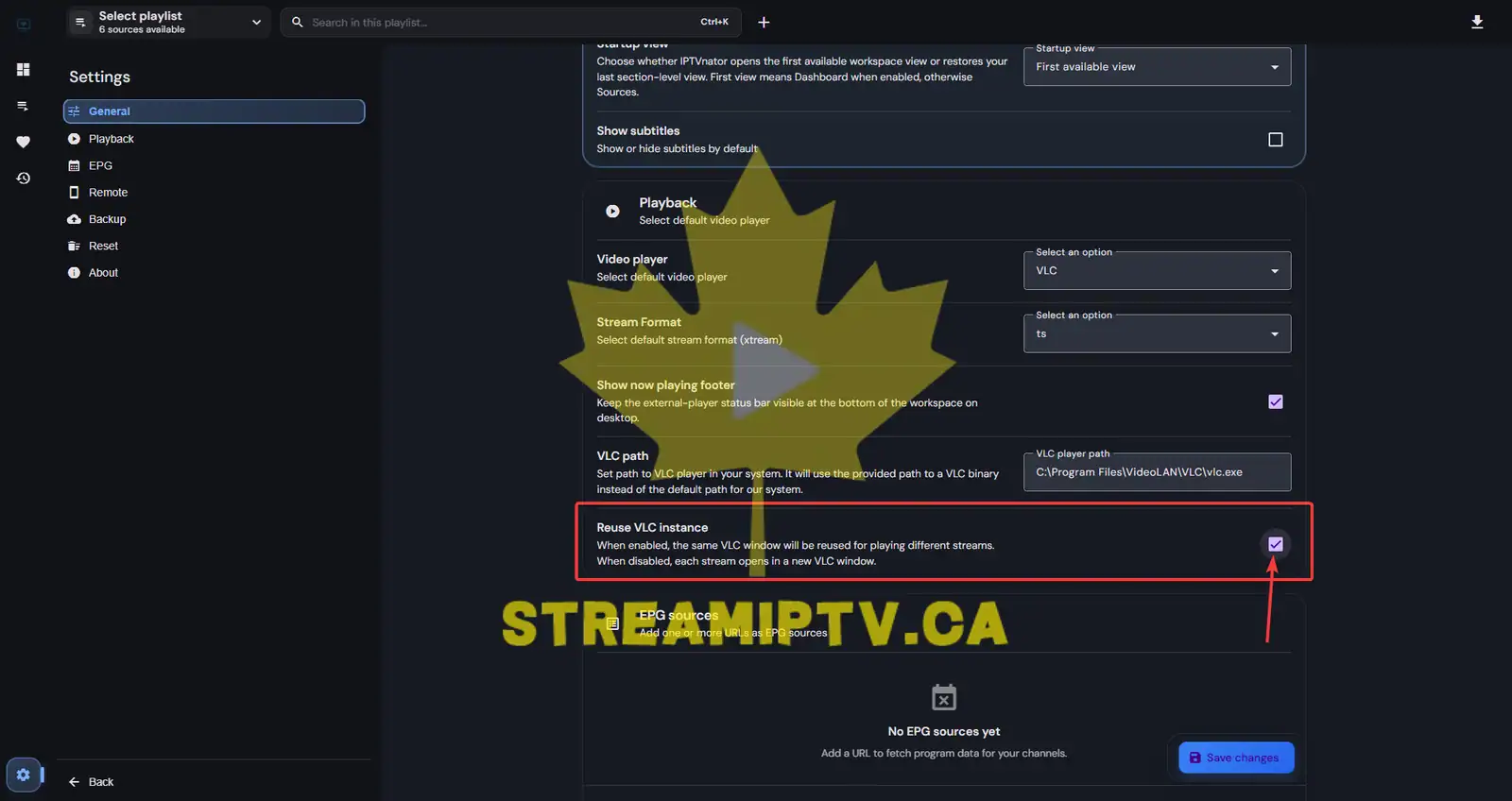
Enable the Reuse VLC Instance option, then click Save Changes to apply the new playback settings.
Final step
IPTVnator Is Ready to Use
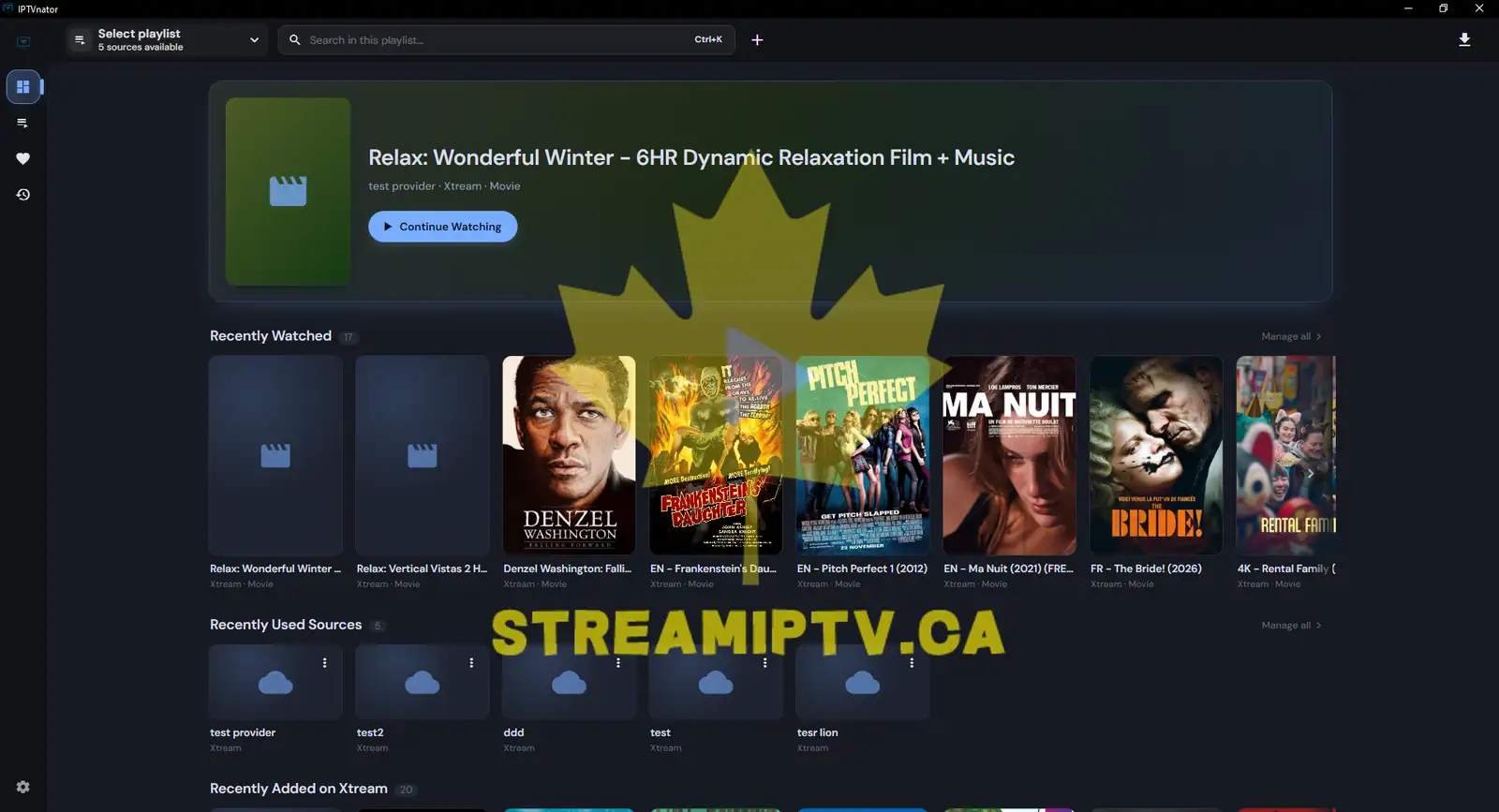
Congratulations! IPTVnator is now successfully installed and configured on your Windows computer. You are ready to add your IPTV playlist and start streaming live TV channels, movies, and series.