

Installation
Hot Player
9 steps
How to install Hot Player in the Firestick
Slideshow Mode
Follow each step fullscreen. Swipe, drag or use ←→ keys.
Quick guide to install Hot Player on Amazon FireStick using Downloader, then add your IPTV playlist safely.
Was this helpful?
Text size:
Before installing Hot Player on your Amazon FireStick, make sure the Downloader app is already installed and correctly set up. Prerequisite: If Downloader is not installed yet, follow this complete guide first, then come back to continue this tutorial: Full steps to install Downloader App on Fire TV Stick Once Downloader is ready, you can continue with the steps below to install Hot Player.
Start
Open the Downloader app on your FireStick.

Make sure Downloader is already installed and allowed to install unknown apps.
Enter this URL: apk.hotplayer.app

Type the URL exactly as shown, without adding “www”.
Download and install the Hot Player APK.

If FireStick shows a security warning, confirm the installation only if the URL is correct.
Open Hot Player after installation.
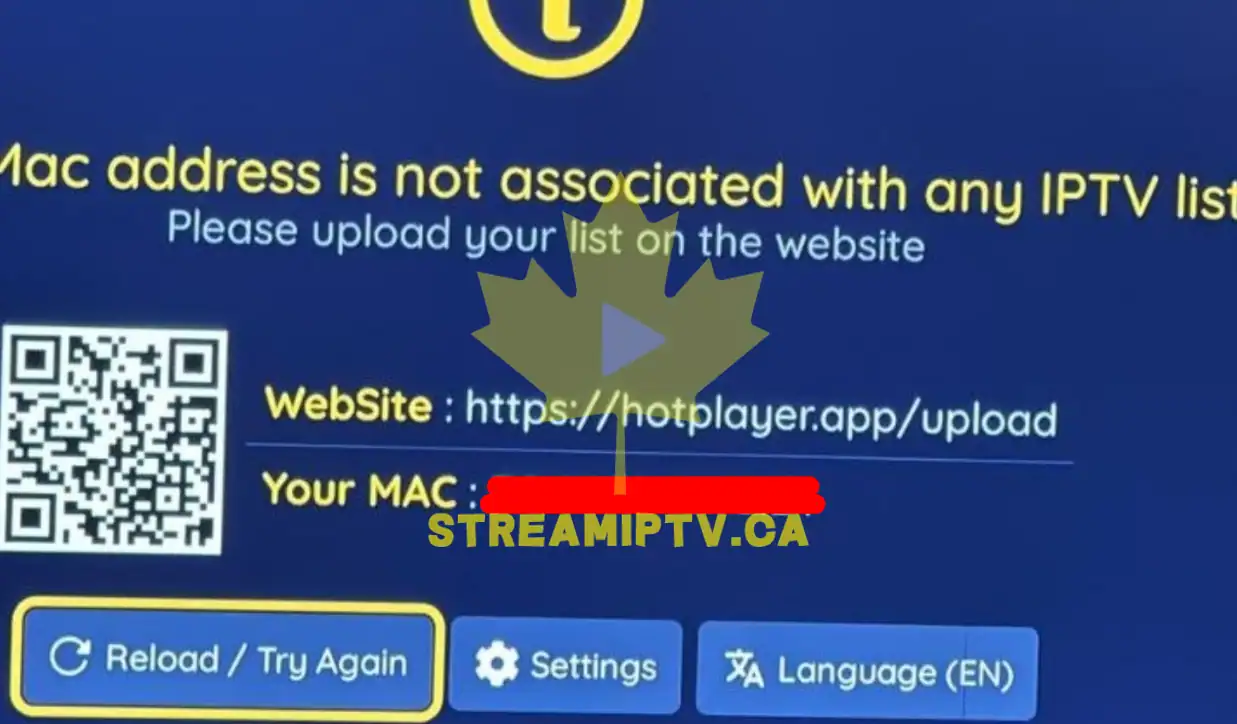
You can delete the APK file after installation to free up space.
Go to https://hotplayer.app/upload and enter your MAC address.
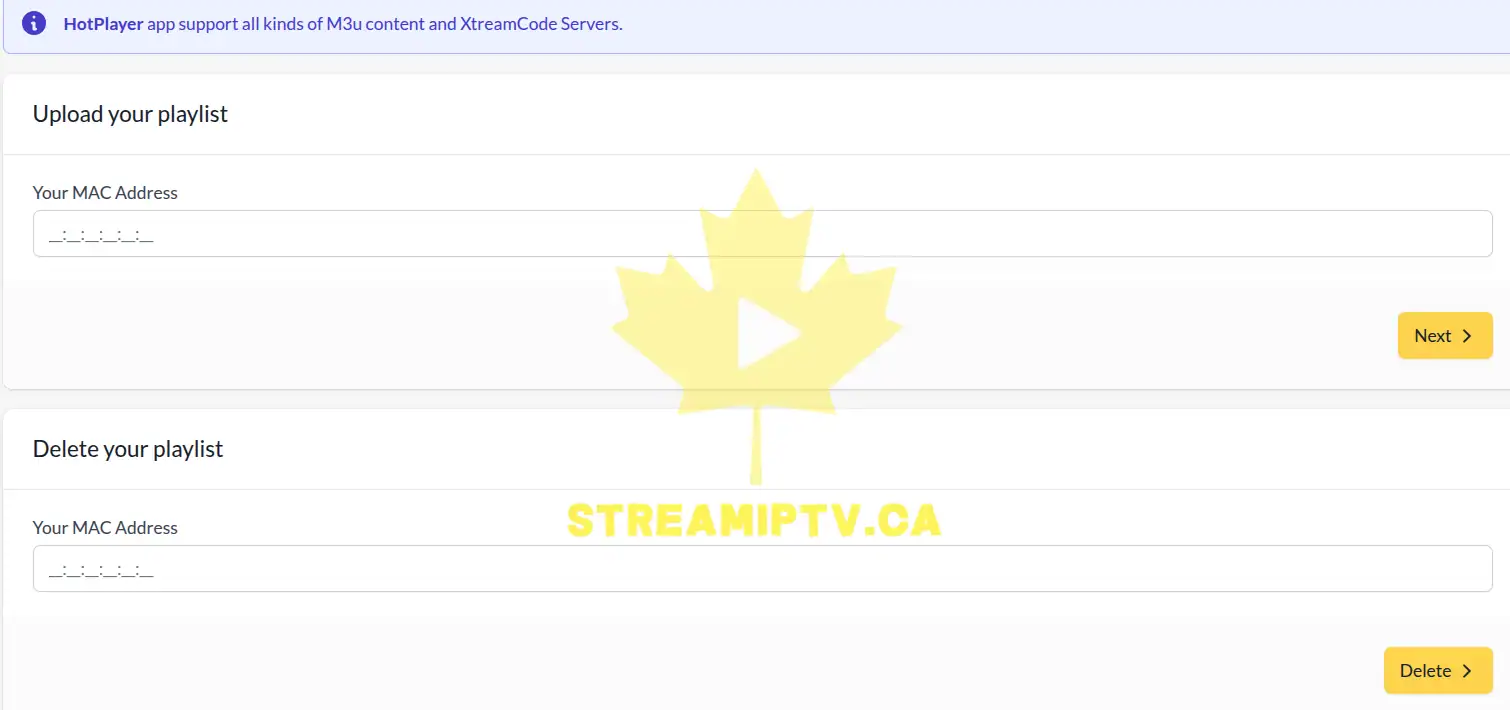
The MAC address must be exactly the same as the one shown inside Hot Player.
Switch to Xtream Codes.
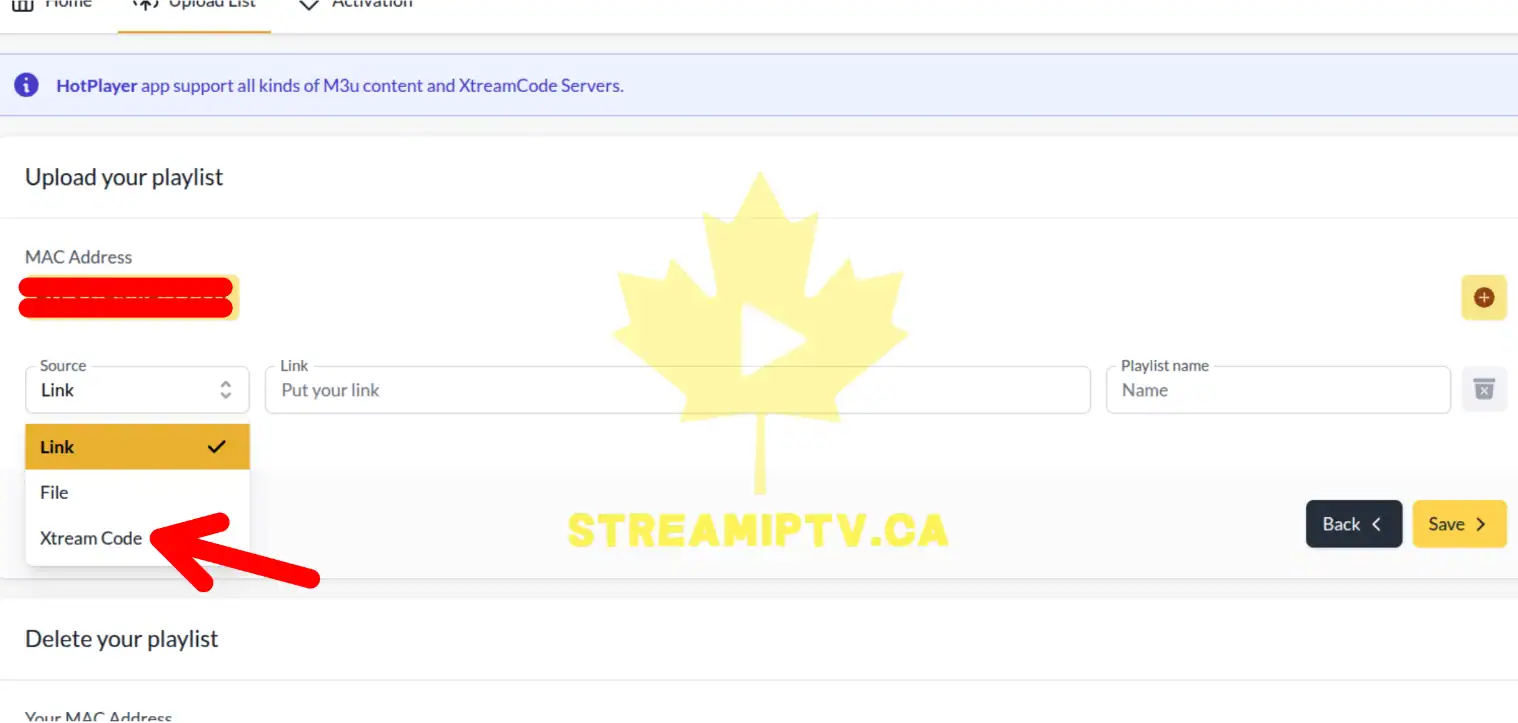
Choose Xtream Codes instead of M3U if your provider gave you a username, password, and server URL. otherwise , don't do this step and paste directly the url
Fill in the IPTV information and click Save.
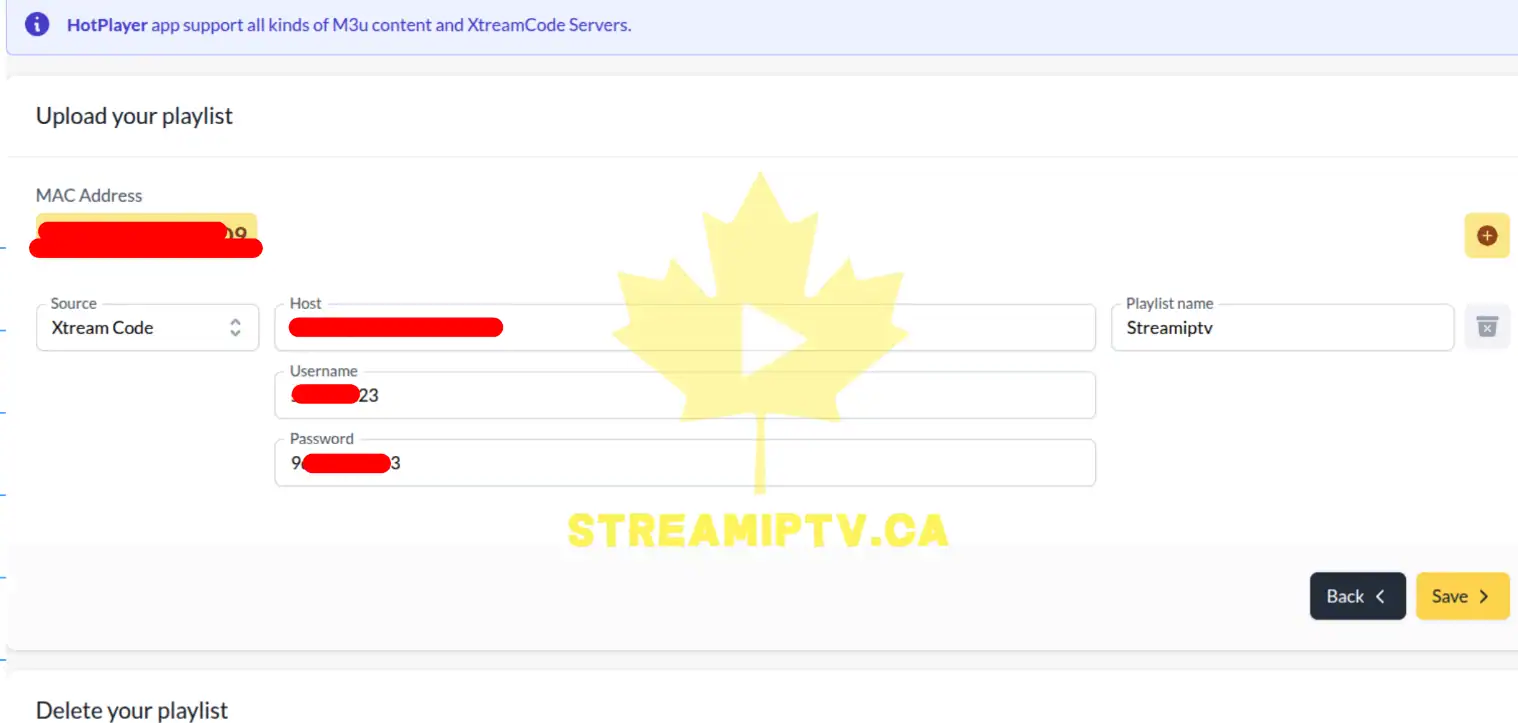
Check the server URL, username, and password carefully before saving ( for the name of the playlist , choose any name you want ! )
Click Reload on your FireStick device.
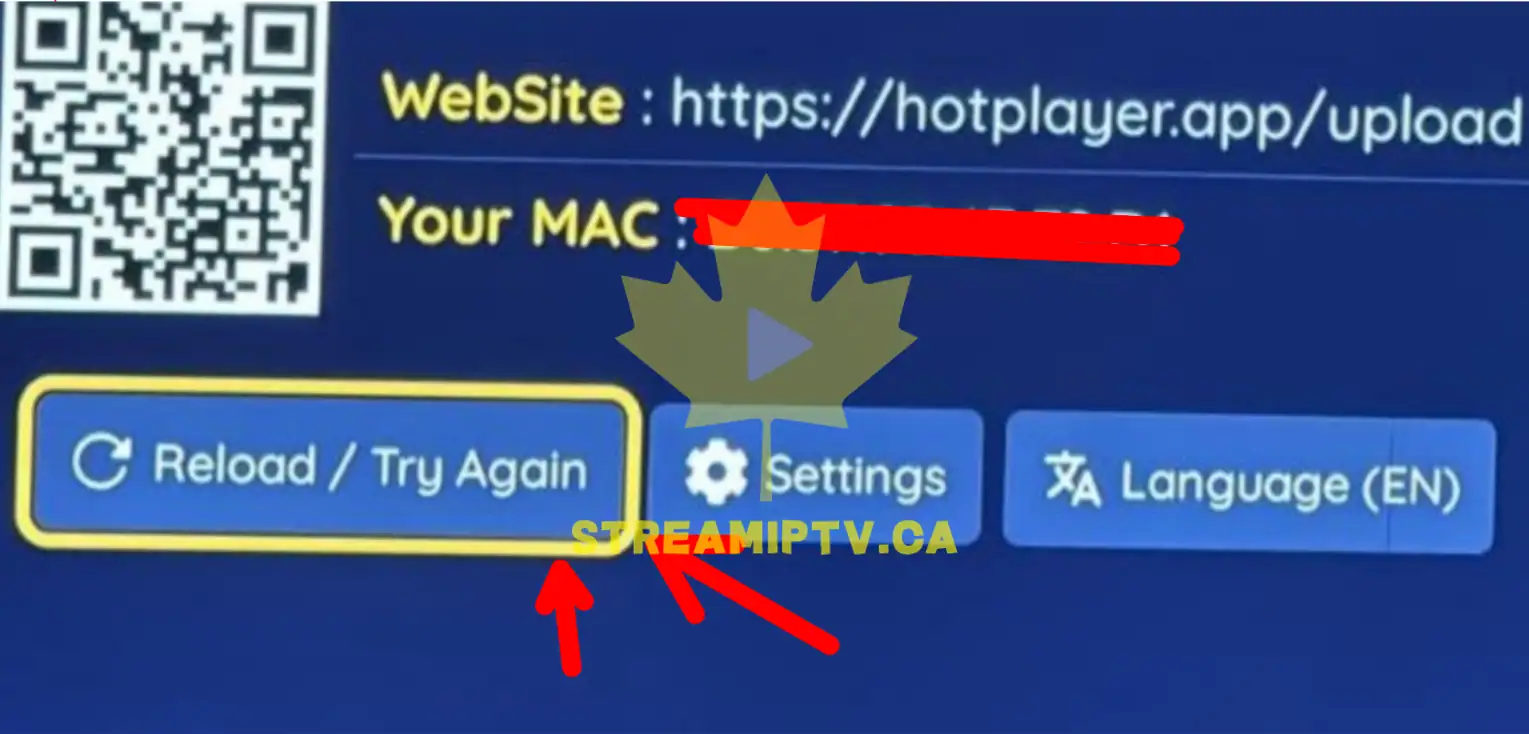
Wait a few seconds for the playlist and channels to load.
Final step
All done. Hot Player is ready to use.
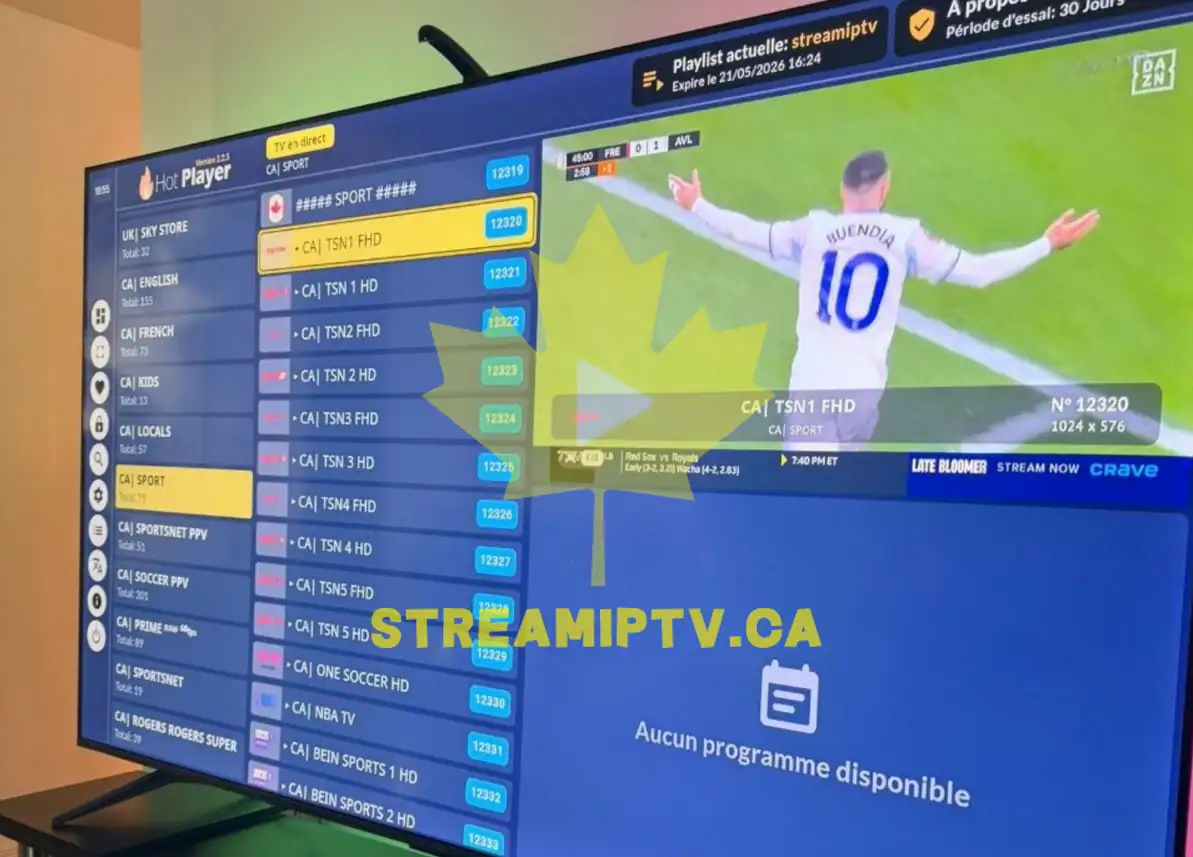
You can now start watching your IPTV channels and VOD content.
🔗
Found this helpful?
Share it with someone who needs it
This guide is part of the StreamIPTV help centre for IPTV Canada viewers, on every device. New here? Start with a free trial.
Comments (0)
Leave a comment