
How to Create a New Subscription in TREX Panel (M3U / Xtream Codes) ?
Slideshow Mode
Follow each step fullscreen. Swipe, drag or use ←→ keys.
Learn how to create a new subscription in the TREX Reseller Panel and generate an M3U line or Xtream Codes login in a few simple steps.
Creating a new subscription in the TREX Reseller Panel is quick and flexible. You can create a standard M3U line, use the same credentials with Xtream Codes-compatible apps, and choose exactly which Live TV and VOD packages the customer should receive.
You can either select channels and VOD manually or use a saved Custom Template to apply a preconfigured package much faster.
Before starting, make sure you are logged in to your TREX Panel and have enough reseller credits available.
Follow the steps below to create and configure a new TREX subscription.
Start
Open M3U Lines
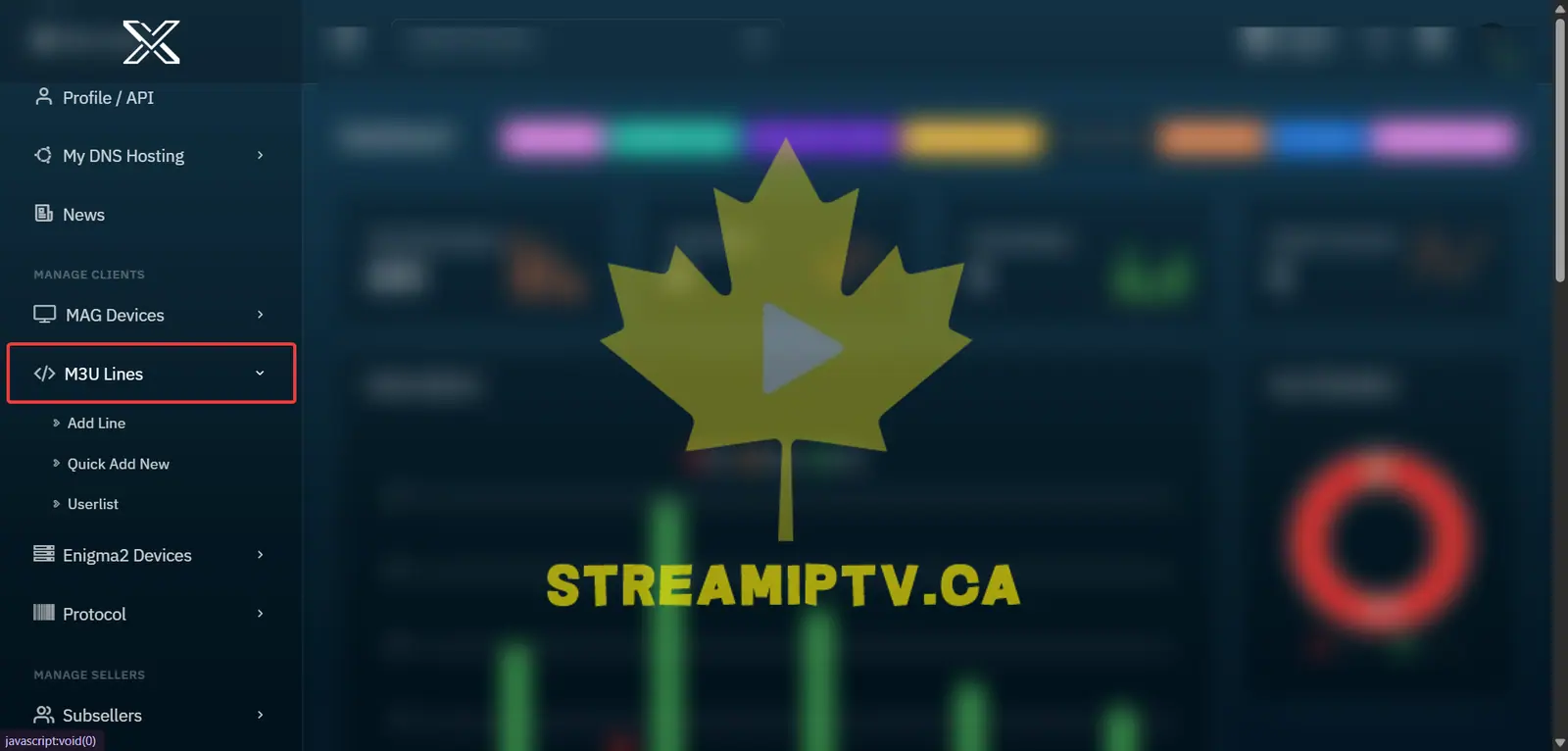
From the left menu of your TREX Reseller Panel, open M3U Lines.
Click Add New Line
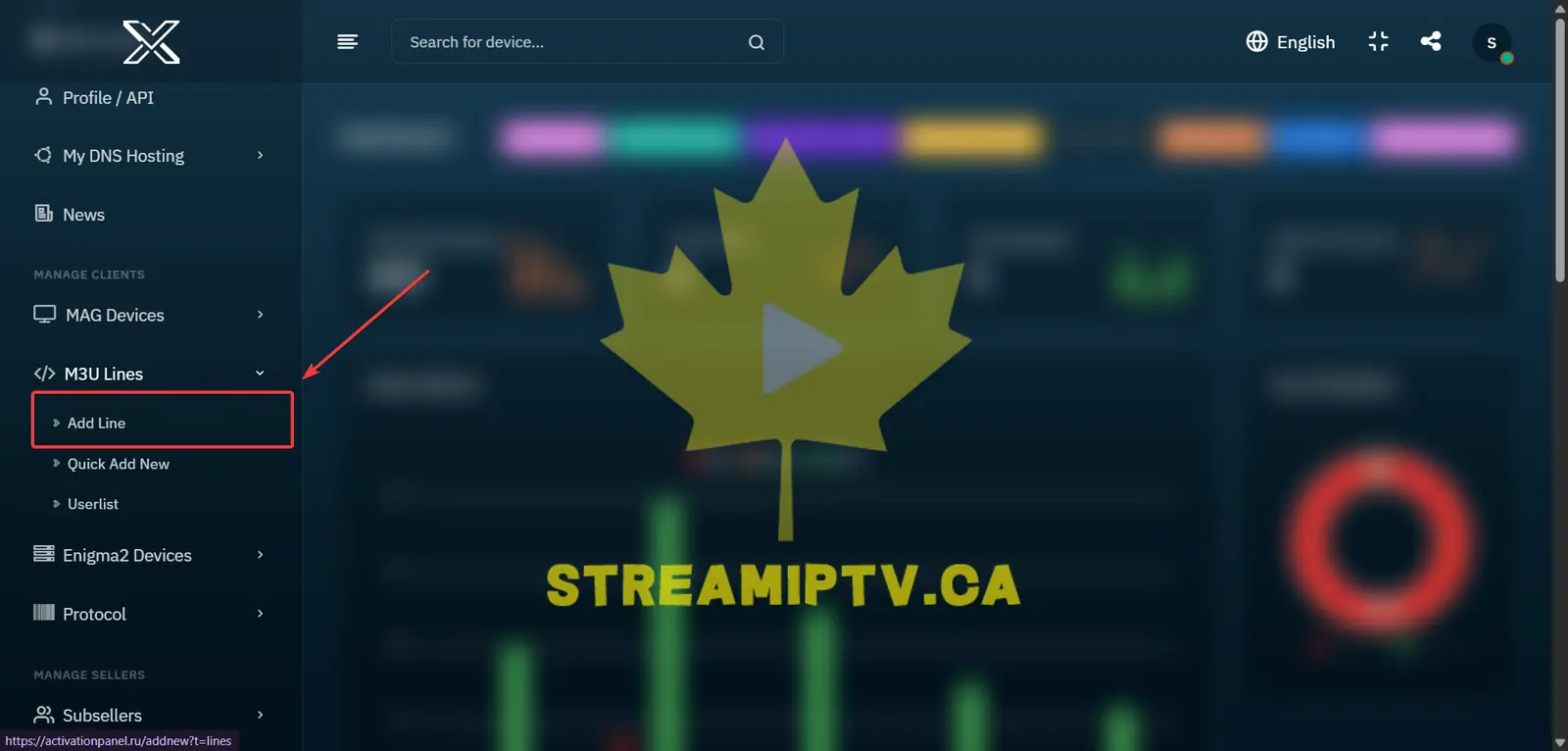
Under M3U Lines, click Add New Line to create a new TREX subscription.
Choose the Subscription Duration
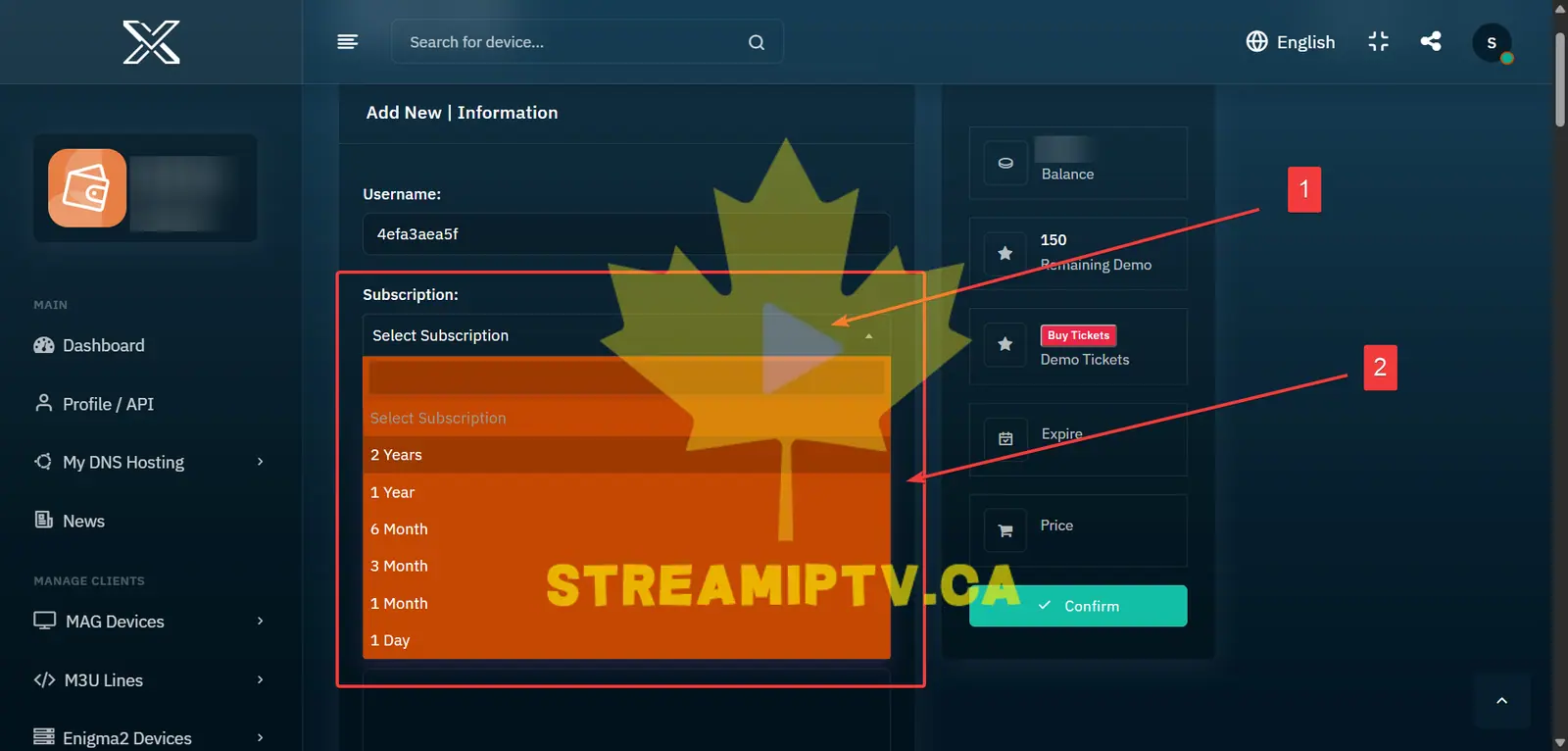
Select the required subscription period, such as 1 month, 3 months, 6 months or 1 year.
Select the Customer Country ( Optional )
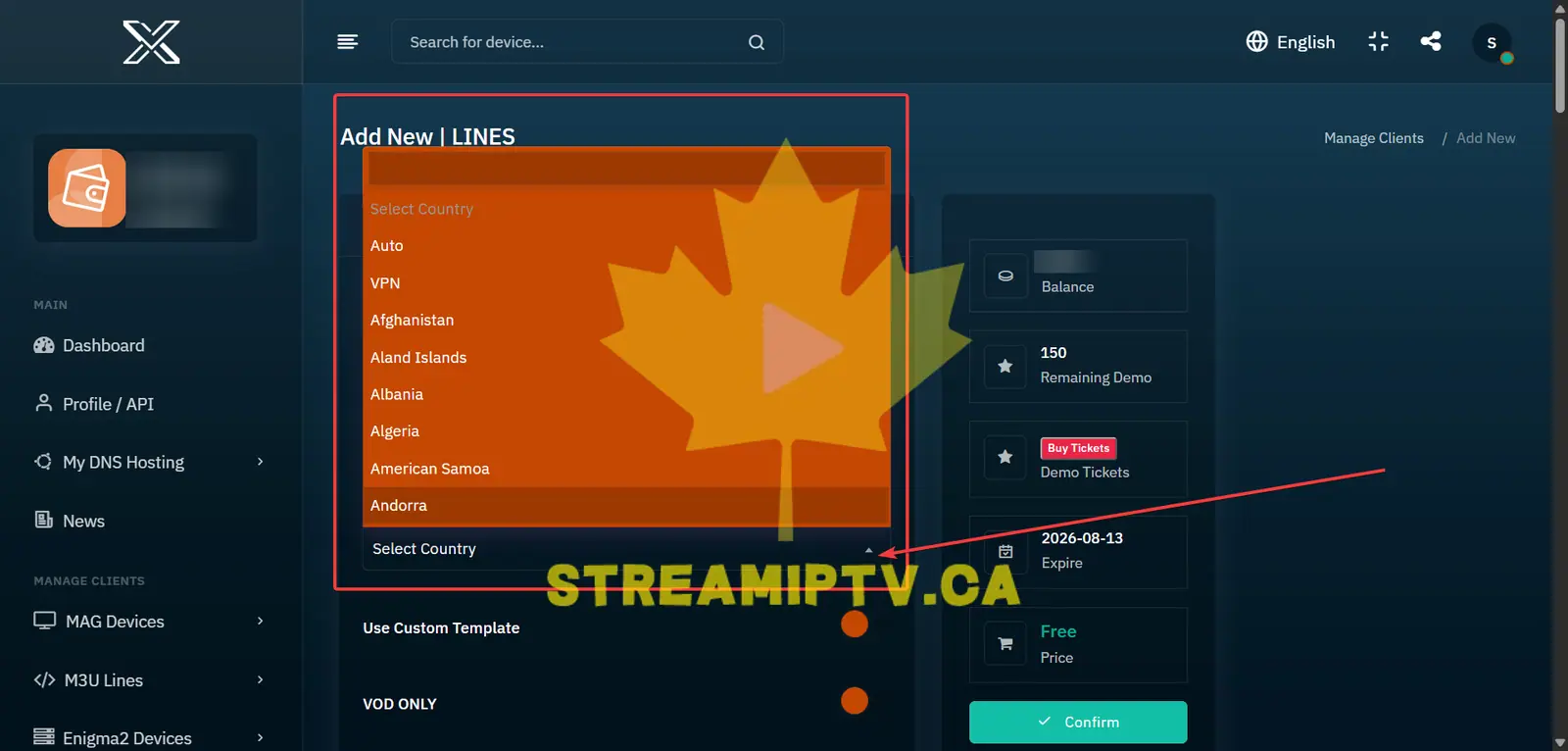
Choose the customer's country to remember where he/she come from. Just let it "Auto" - We don't use it at all , but use it if you have an international IPTV website-
Choose Custom Template or Manual Selection ( optional )
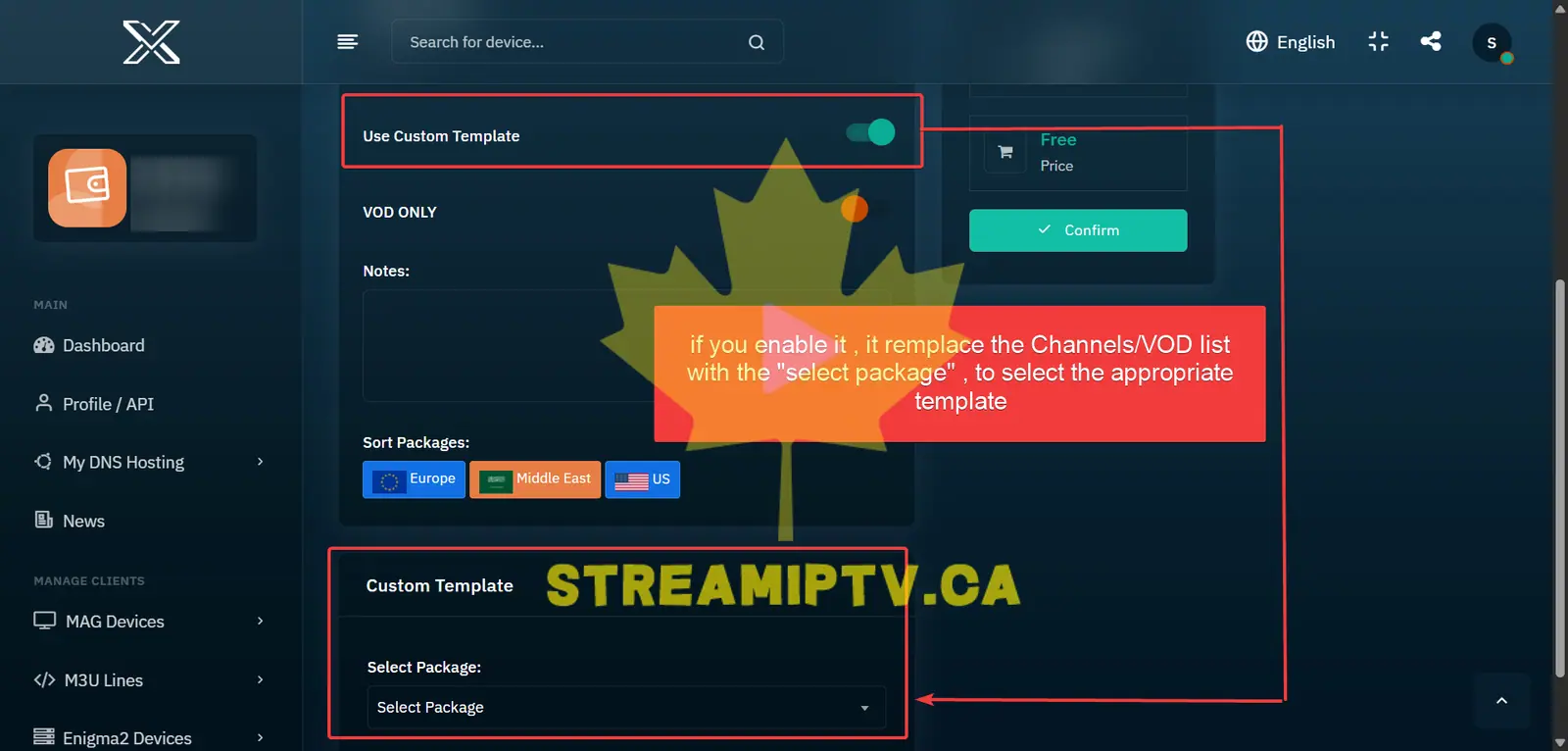
If you already have a saved Custom Template, enable this option and simply select the template you want. The Live TV channels and VOD included in that template are already configured, so there is no need to select them manually.
Don't have a template yet? See our TREX Custom Template tutorial to learn how to create one and make subscription creation much faster.
Enable VOD Only if Needed ( optional )
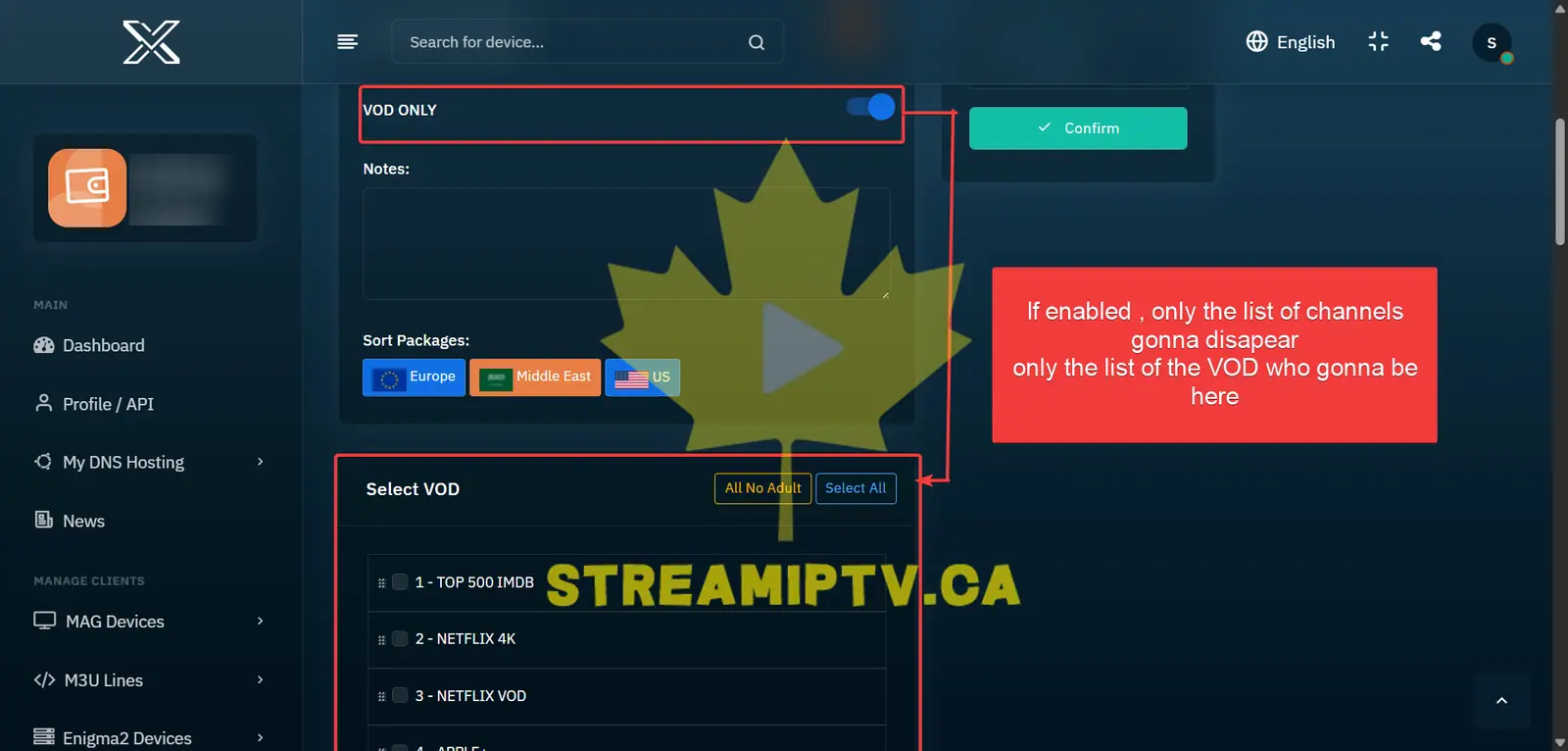
Enable VOD ONLY if the subscription should contain only movies and TV series without Live TV channels. Otherwise, leave it disabled.
Add Subscription Notes
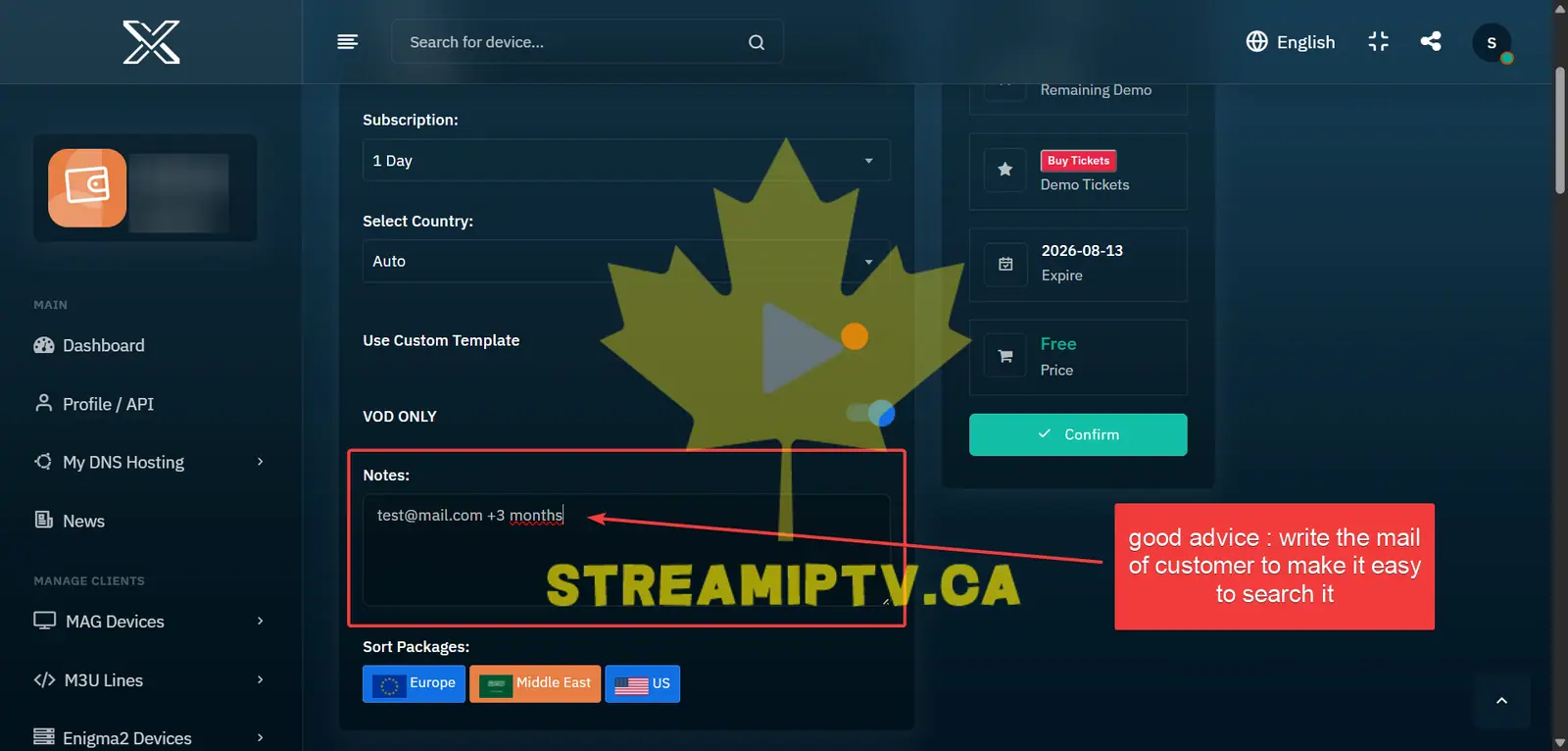
Use the Notes field to save useful information about the subscription, such as a customer email, +2 months, +3 months, renewal details or other reminders.
Choose Packages by Region ( optional )
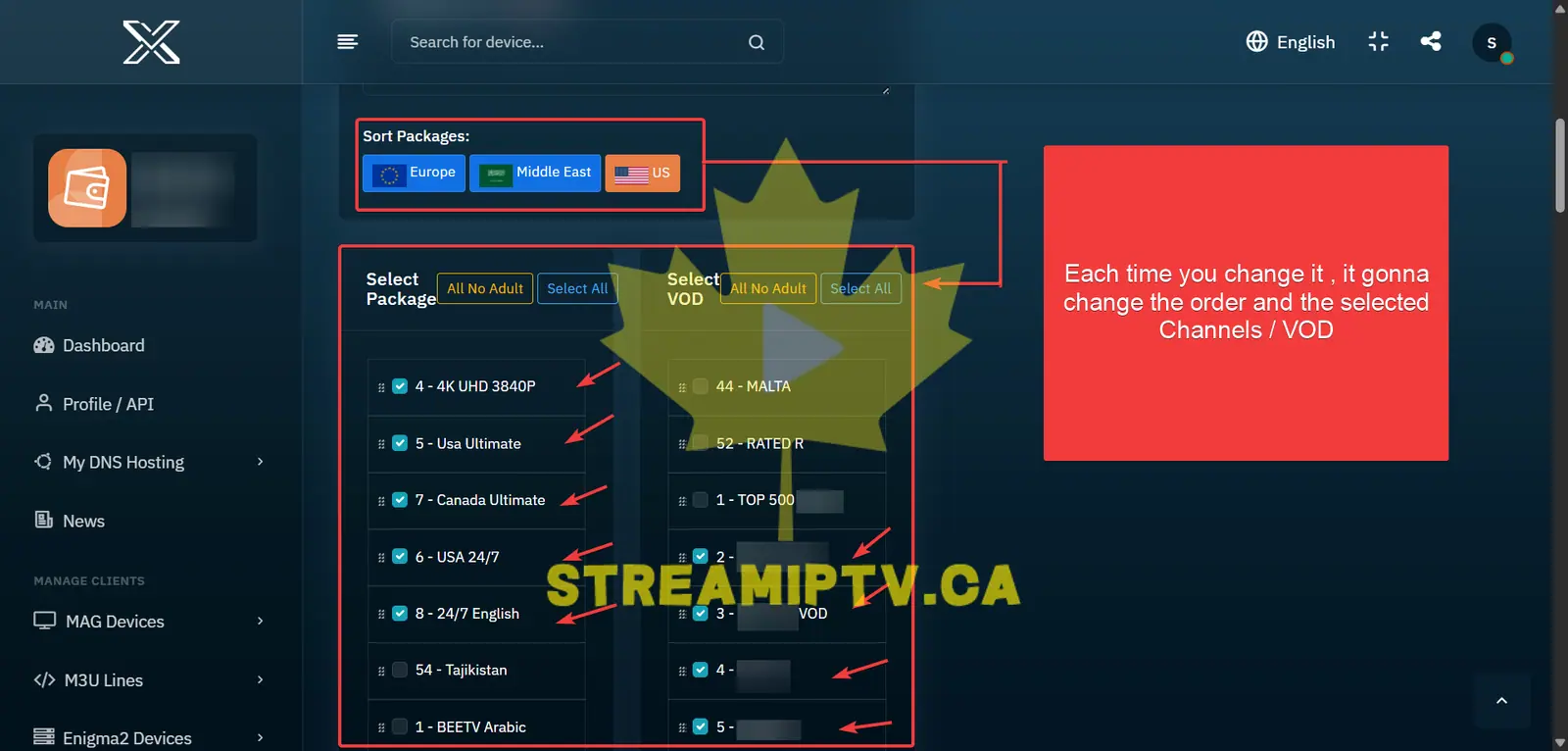
Use Sort Packages to quickly filter and select Live TV and VOD content by region, such as Europe, Middle East or US.
Select Live TV Channels and VOD
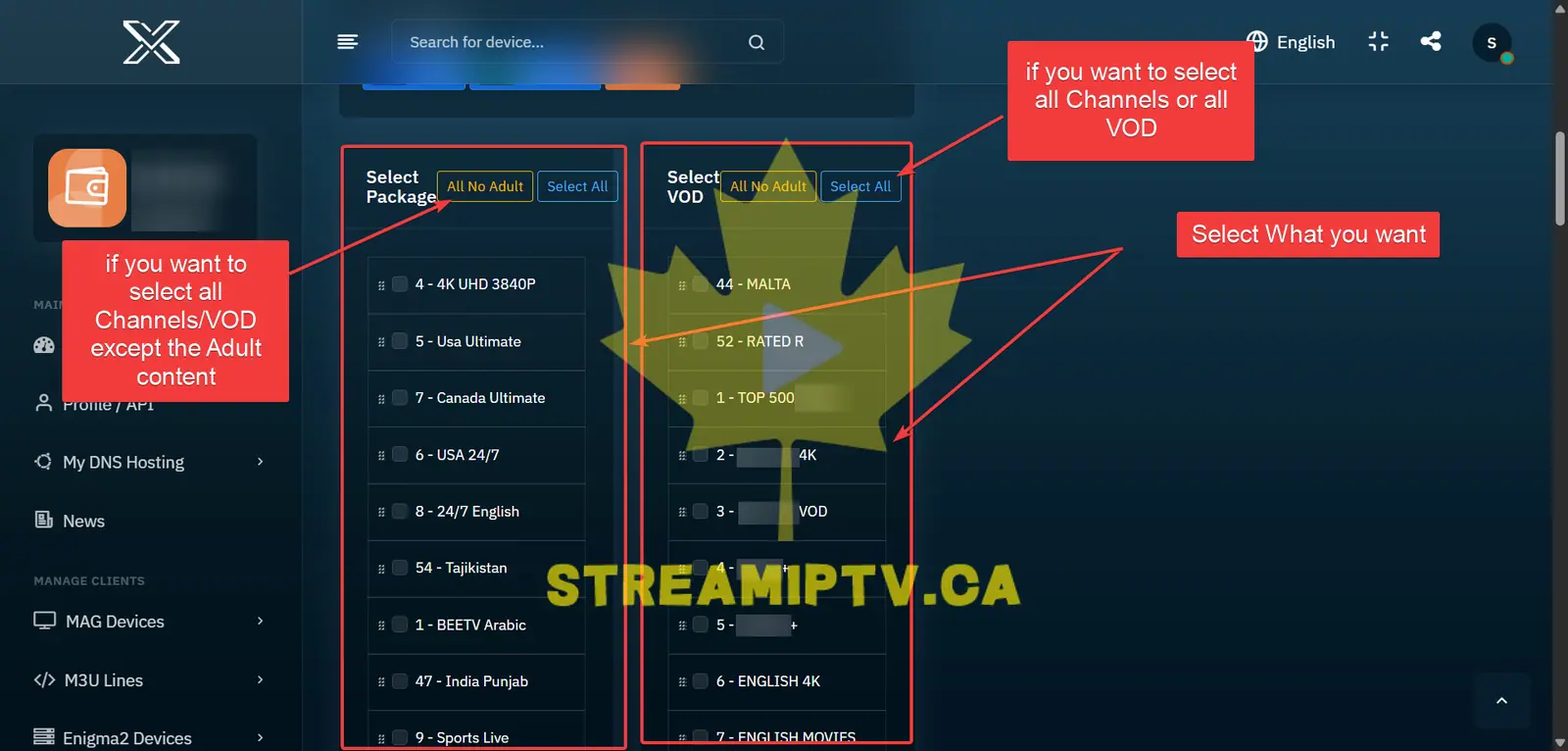
If you are not using a Custom Template, select the Live TV and VOD packages you want to include in the subscription.
Use Select All to include everything, or All No Adult to quickly select all available content except adult packages.
Alternative for Step 8 when "Use Custom Template" is enabled
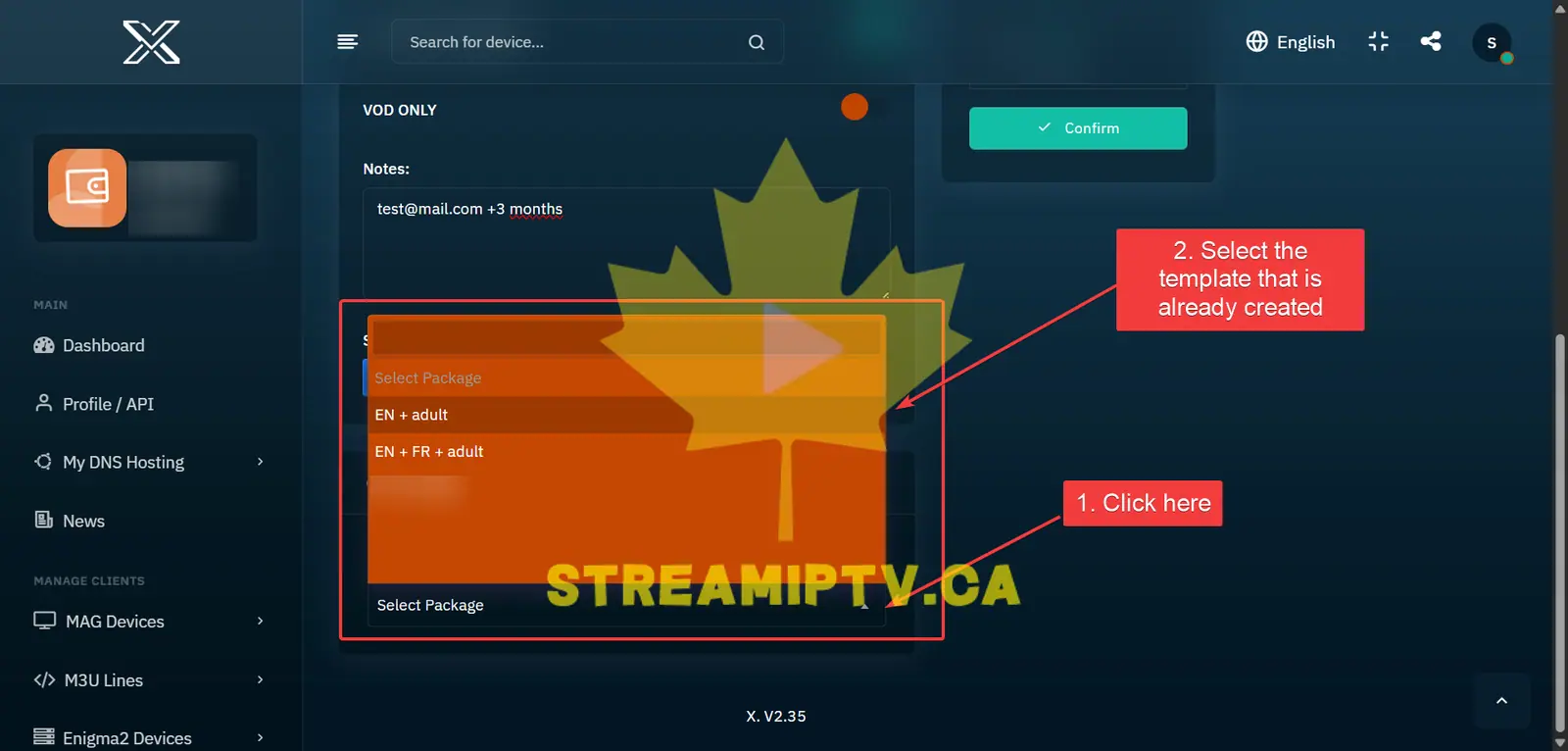
If you are not using a Custom Template, select the Live TV and VOD packages you want to include.
Use Select All to include everything, or All No Adult to select all available content except adult packages.
If Custom Template is enabled, you will instead see your saved templates. Simply select the template you want to use.
Confirm and Create the M3U Line
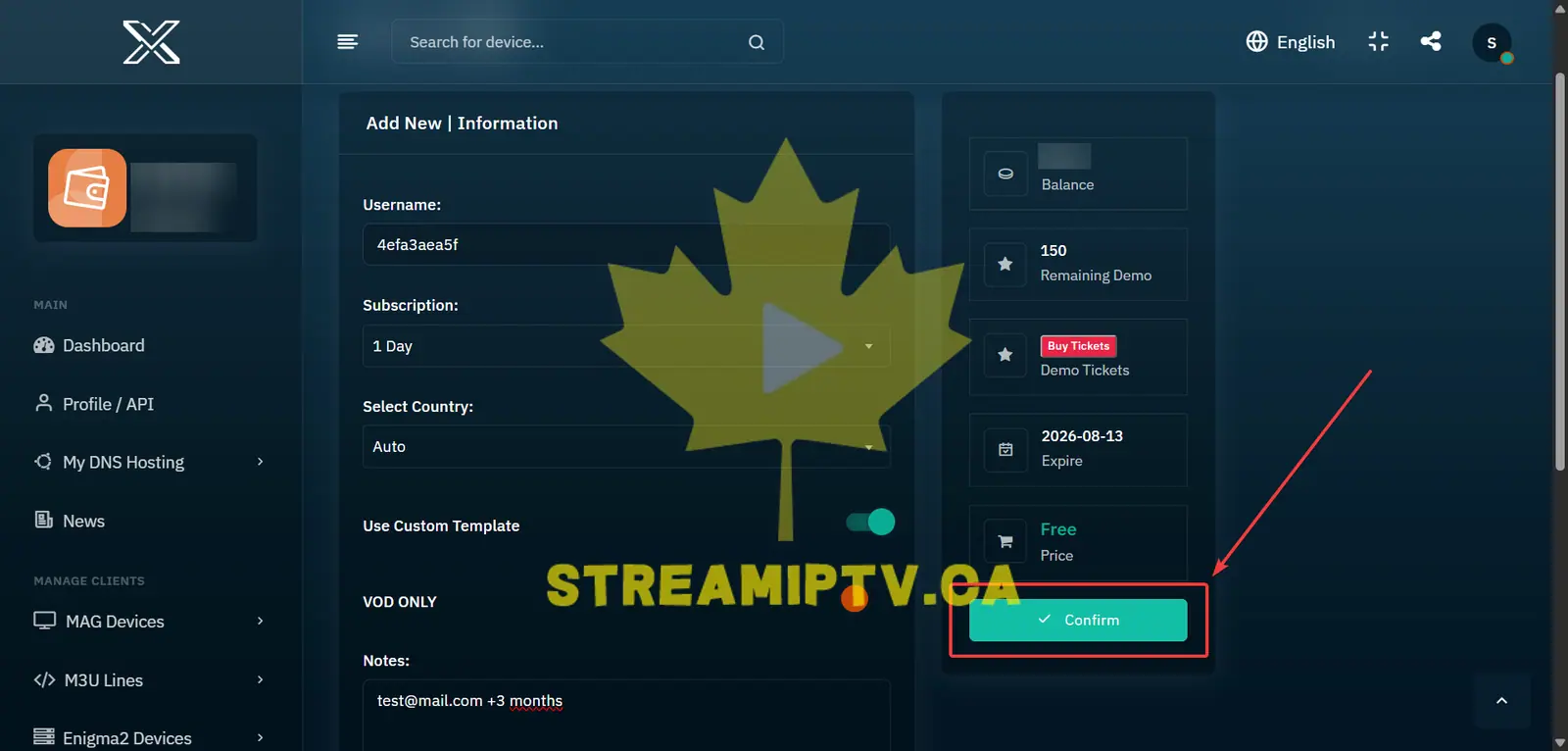
Check the selected subscription, packages and required credits, then click Confirm to create the new TREX M3U line.
Final step
Copy the M3U or Xtream Codes Login and deliver it to the customer
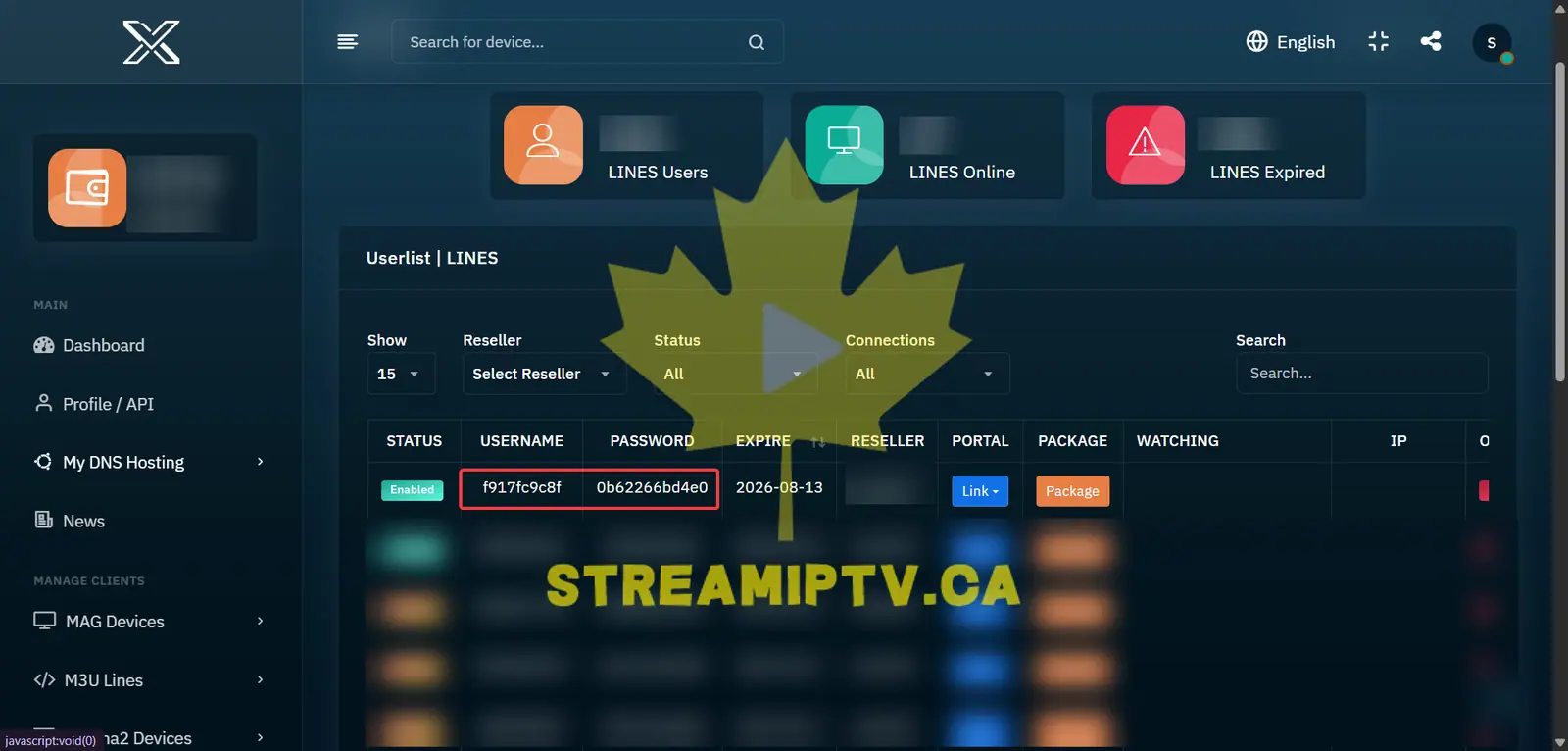
Your TREX subscription is now ready. Open the created line and copy the M3U URL or the server URL, username and password for Xtream Codes-compatible apps.
Comments (0)
Leave a comment