
How to Add an IPTV Playlist to IPTVnator ?
Slideshow Mode
Follow each step fullscreen. Swipe, drag or use ←→ keys.
Learn how to add an IPTV playlist to IPTVnator using Xtream Codes or M3U. Follow this step-by-step guide to connect your IPTV subscription and start streaming on Windows.
IPTVnator supports both M3U playlists and Xtream Codes connections, making it easy to access live TV channels, movies, and series from your IPTV subscription.
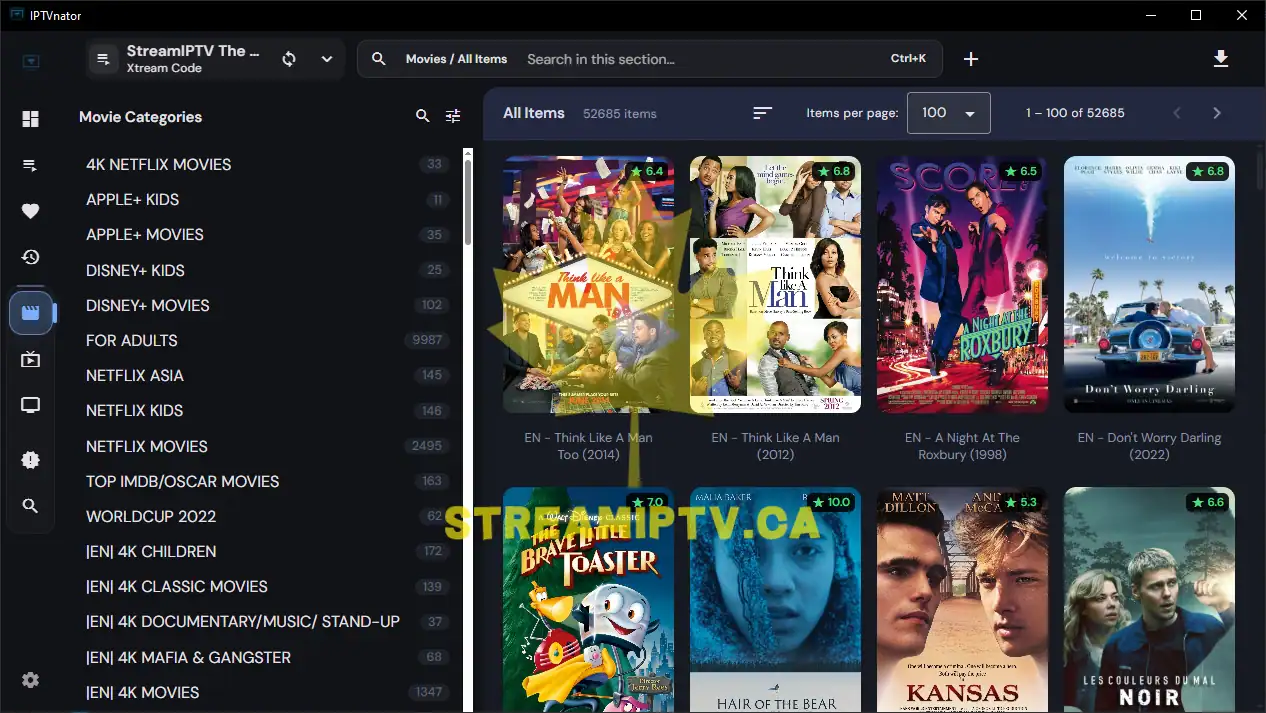
In this guide, you will learn how to add an IPTV playlist to IPTVnator using Xtream Codes credentials. The same process can also be used for M3U playlists.
Prerequisite: IPTVnator must already be installed on your Windows computer.
How to Install IPTVnator on Windows (Free Open-Source IPTV Player)
Once IPTVnator is installed, follow the steps below to connect your IPTV subscription.
Start
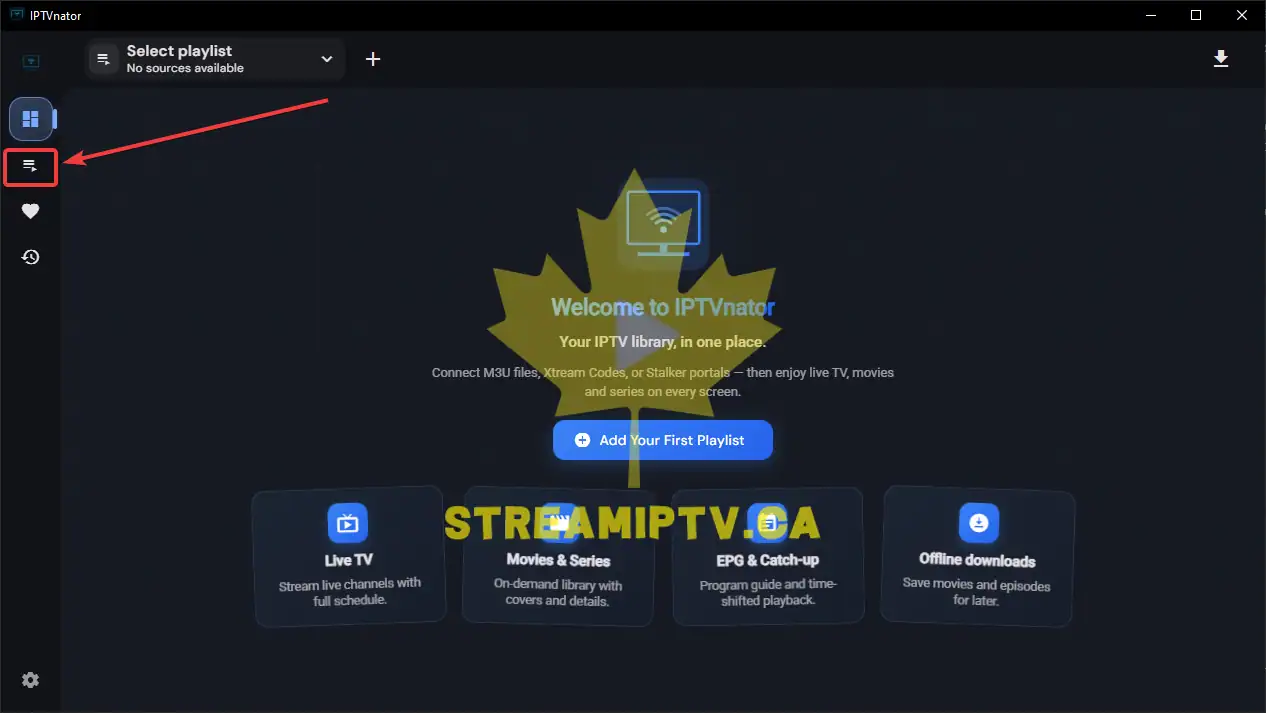
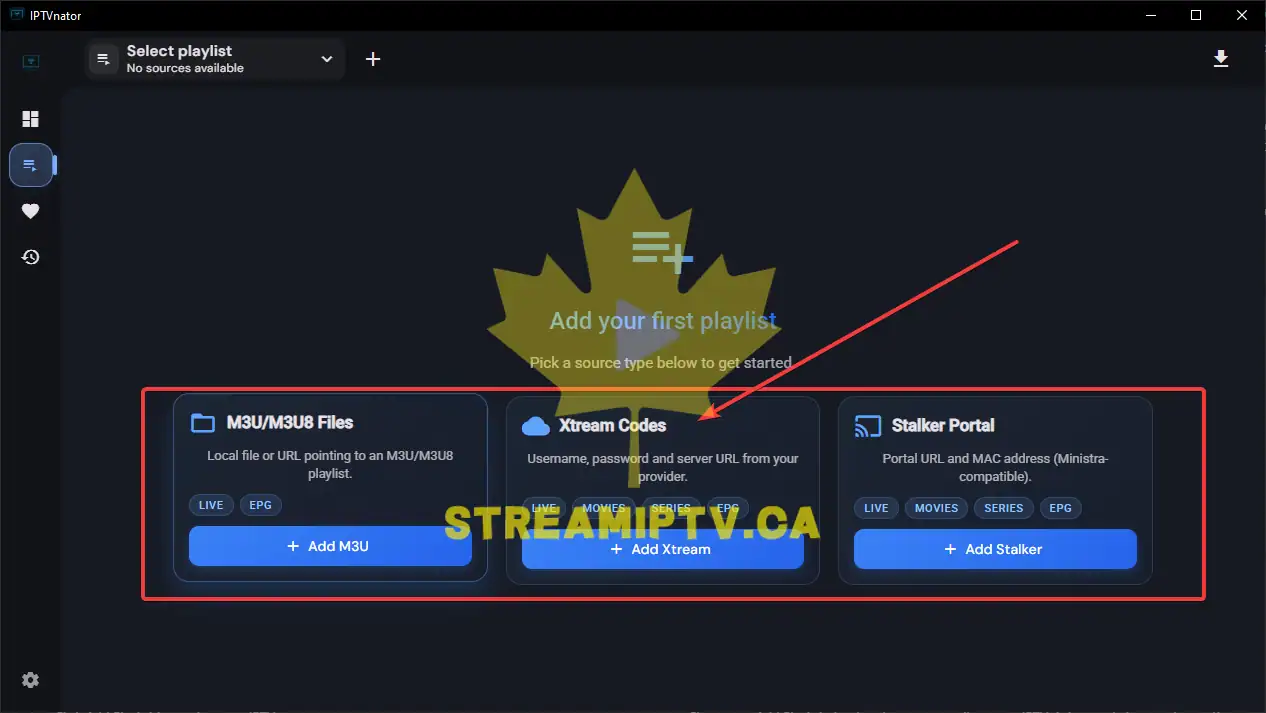
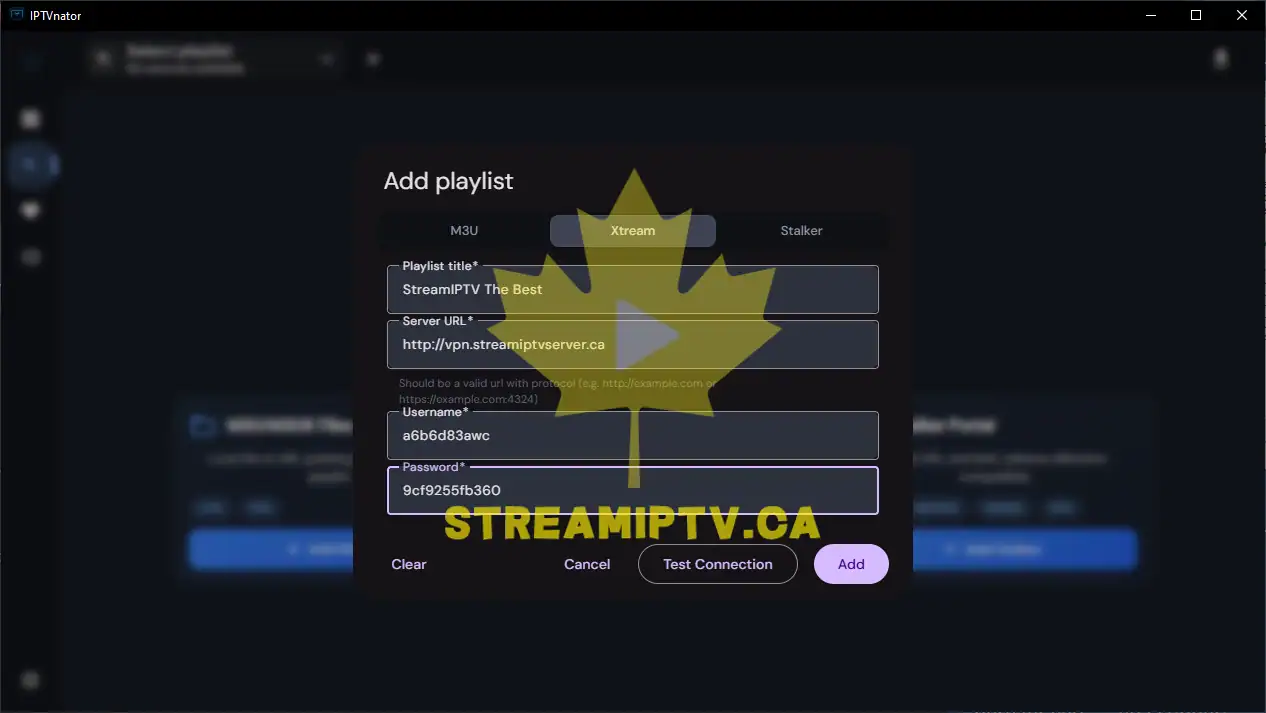
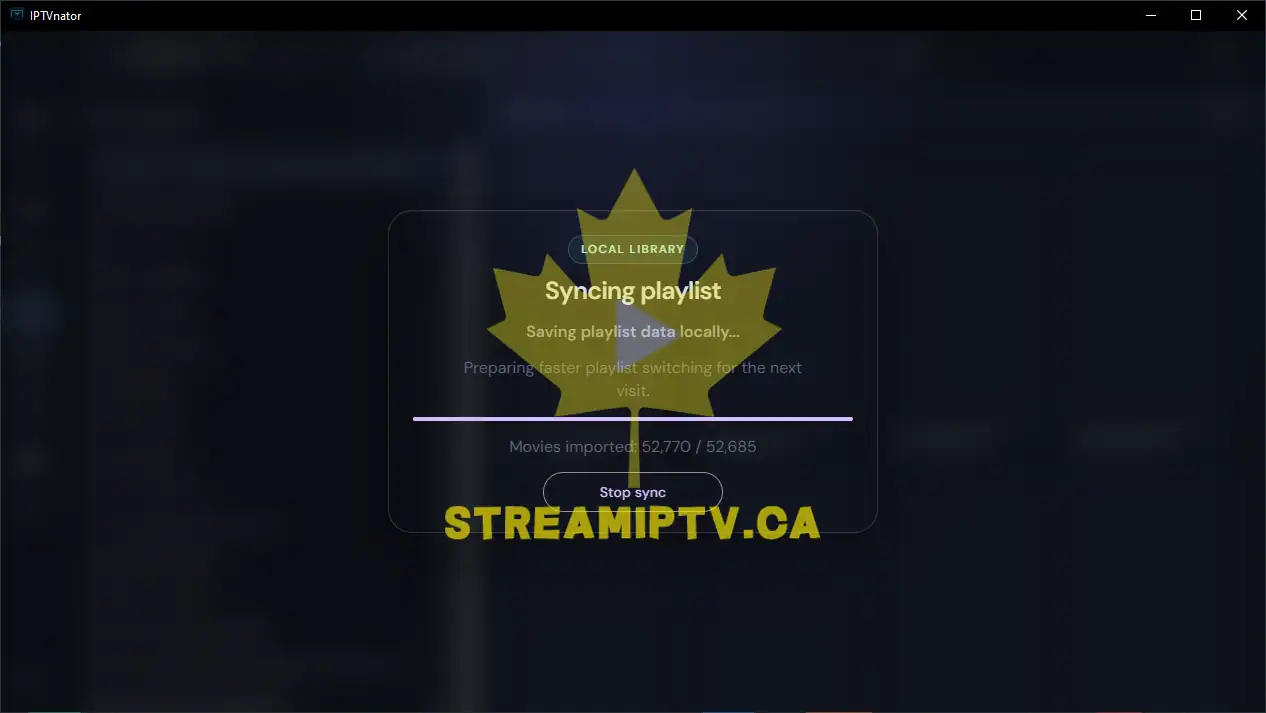
Final step

Comments (0)
Leave a comment