
How to Create a Custom Template in TREX Reseller Panel
Slideshow Mode
Follow each step fullscreen. Swipe, drag or use ←→ keys.
Learn how to create a custom template in the TREX Reseller Panel, select your preferred Live TV and VOD packages, and save it for faster subscription creation.
A Custom Template in the TREX Reseller Panel lets you save a predefined selection of Live TV channels and VOD packages.
Instead of selecting the same channels and VOD every time you create a new subscription, you can simply choose your saved template and apply the configuration instantly.
Follow the steps below to create your first TREX Custom Template.
Start
Open the Templates Section
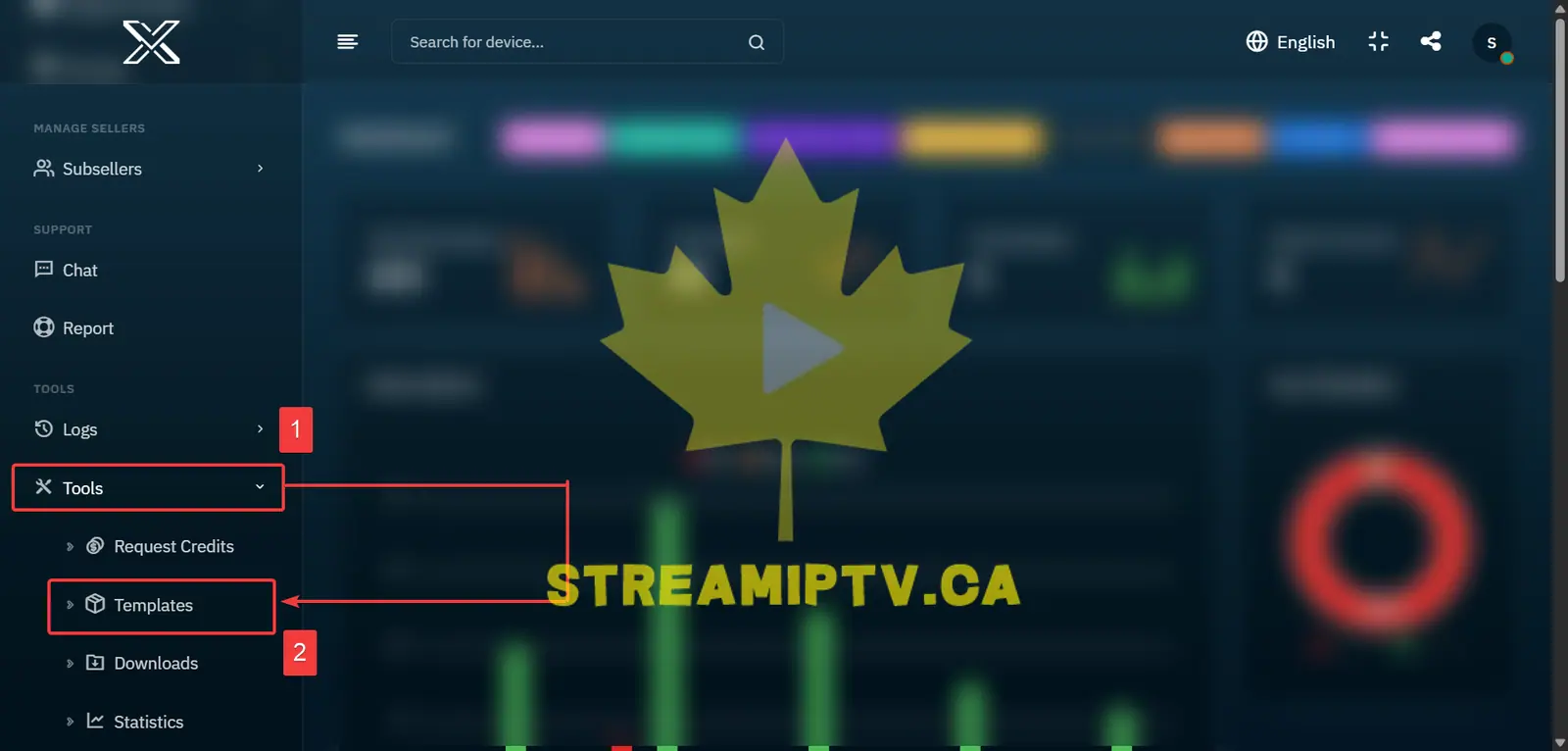
Scroll down to Tools in the TREX Reseller Panel menu and click Templates.
Focus the Template Creation Form
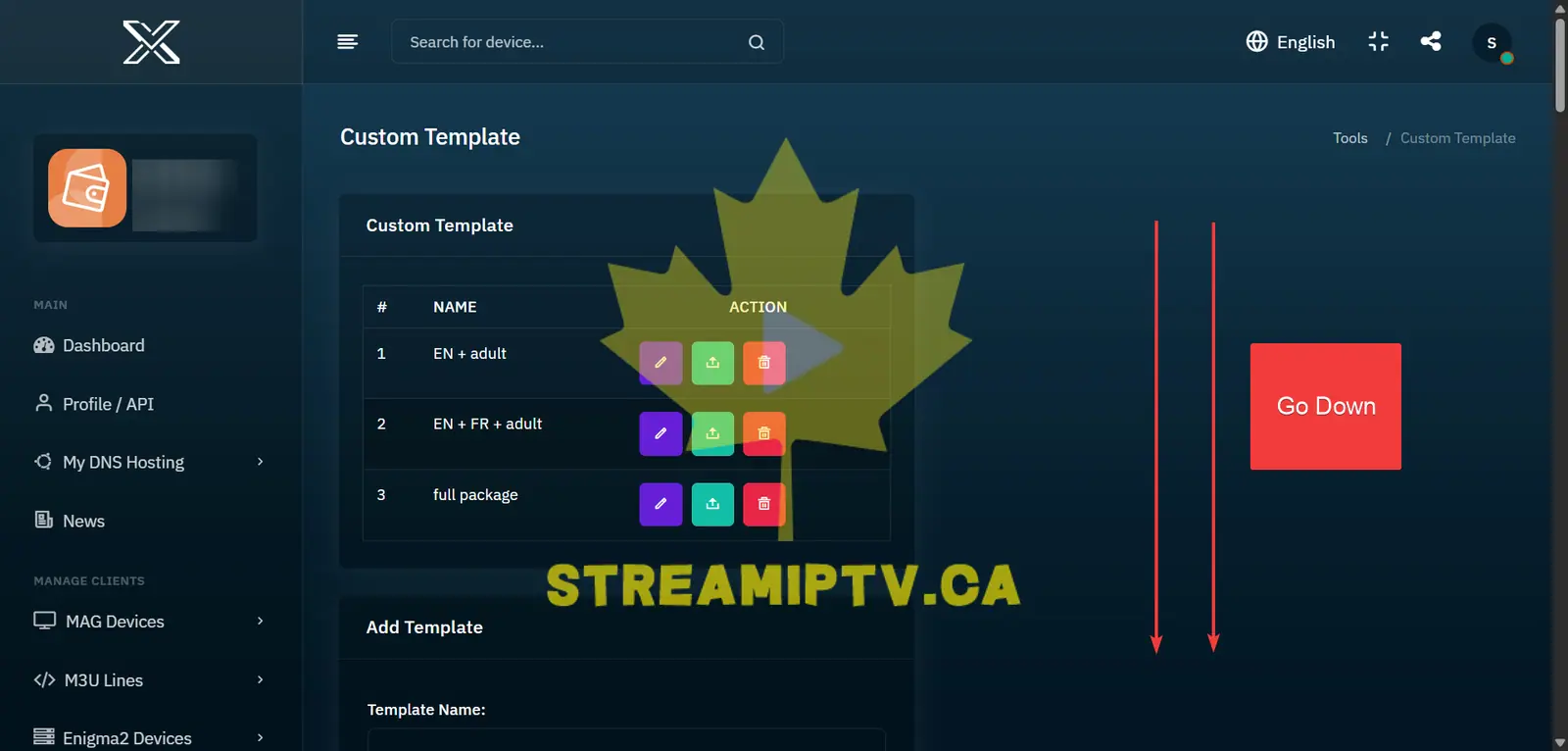
Scroll down the Templates page until you find the template creation form.
Enter a Template Name
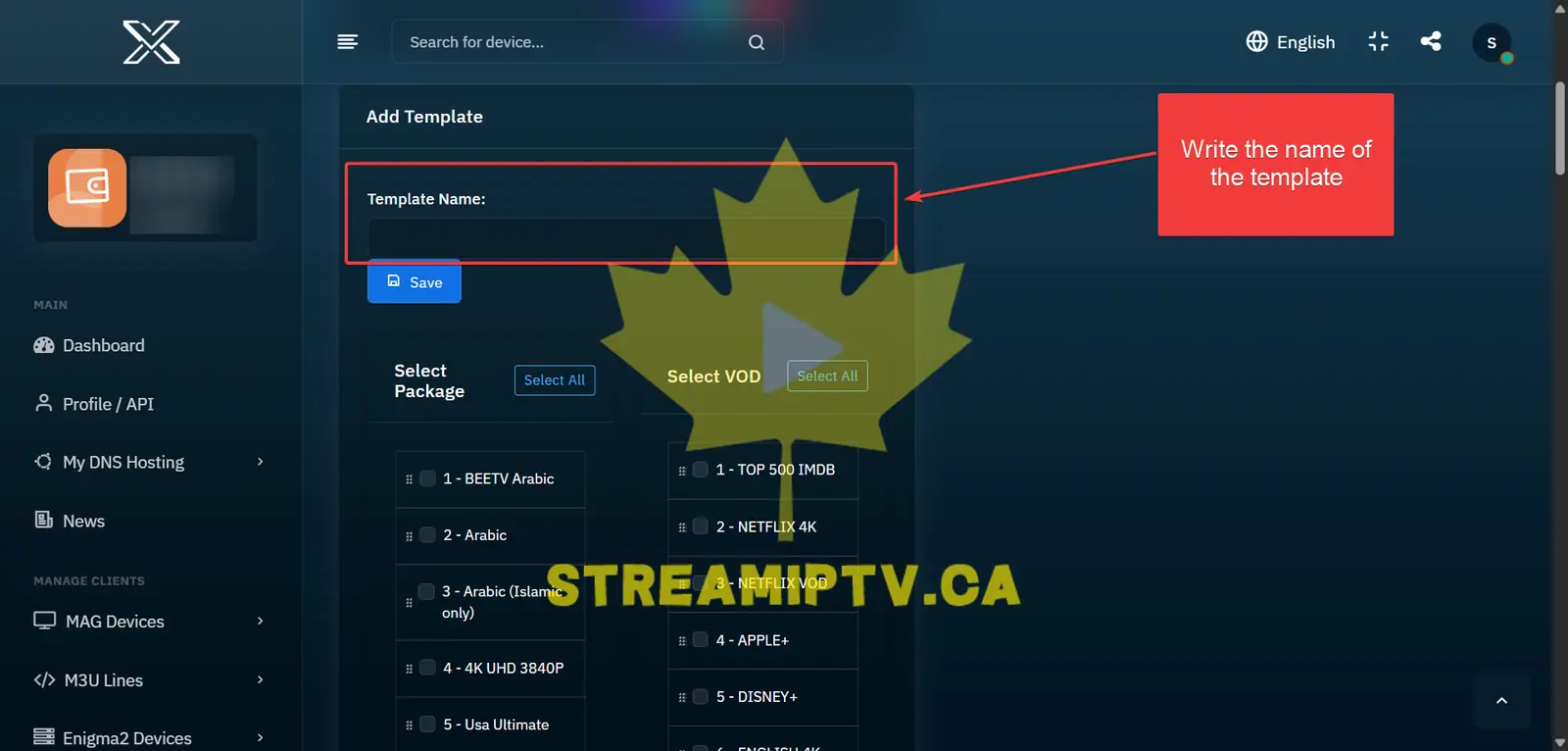
Enter a clear name for your new template, such as Canada Full, Europe No Adult or Arabic Package.
Select Live TV Channels and VOD
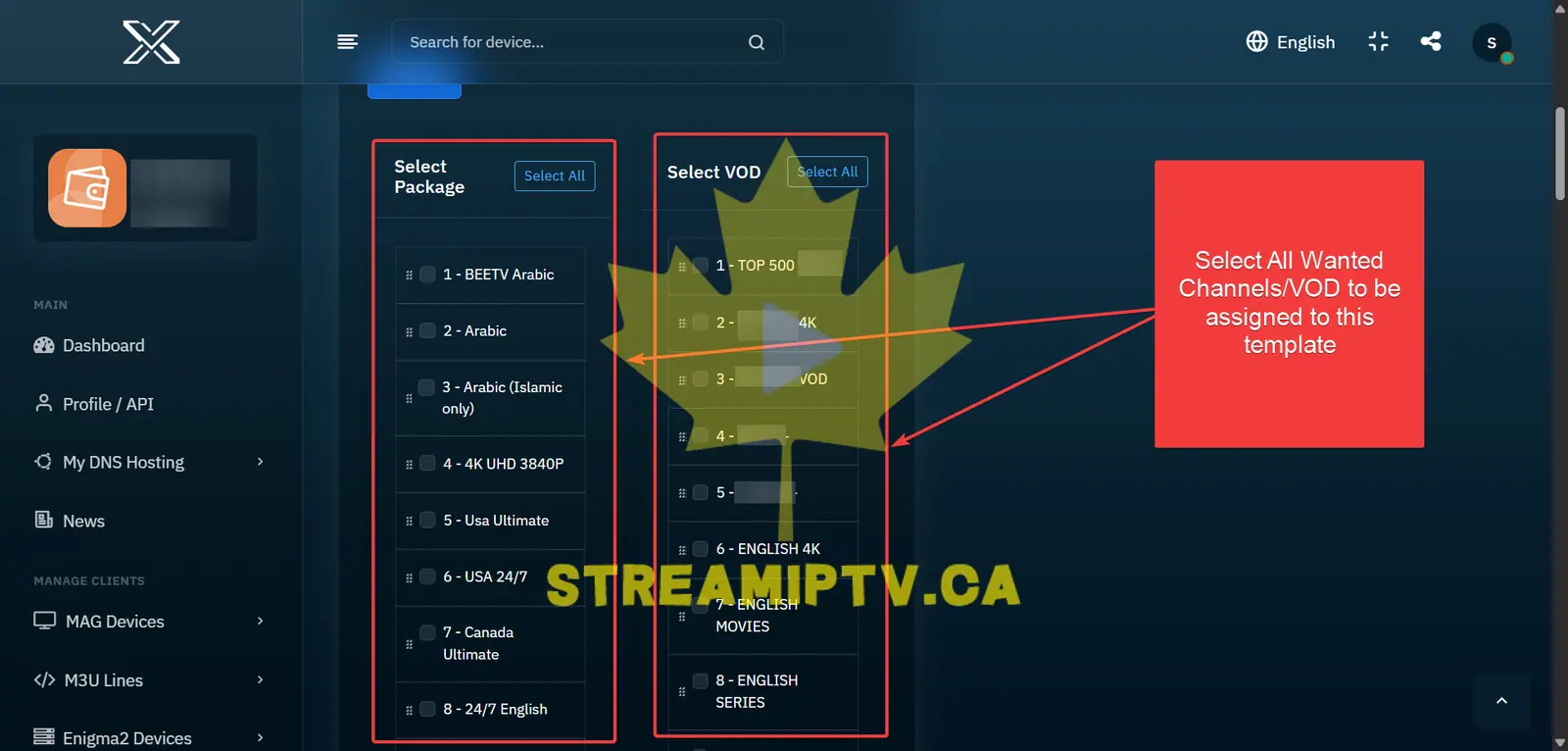
Select all the Live TV channels and VOD packages you want to include in this template.
Choose only the content you want automatically applied whenever this template is used.
Save Your TREX Template
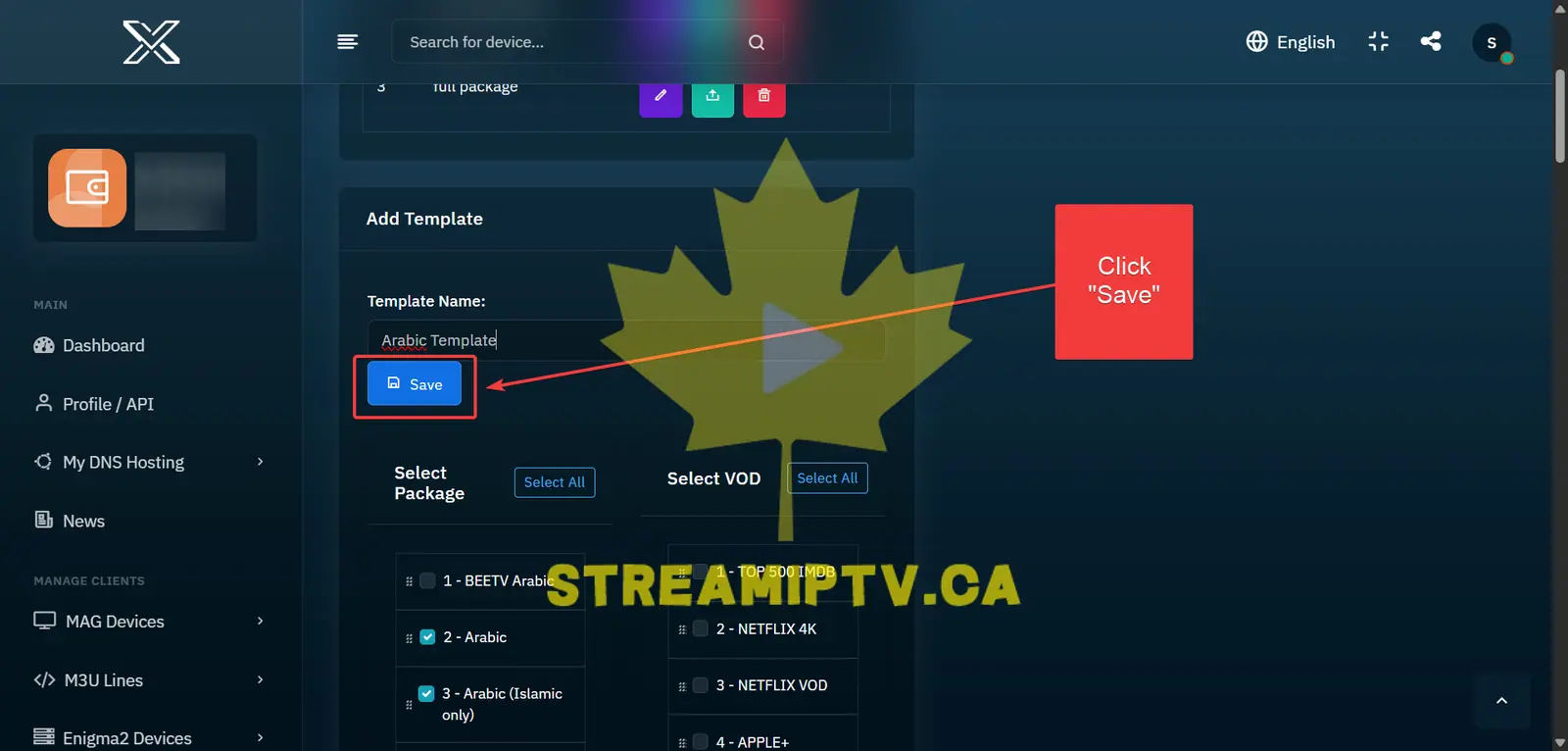
Once your channel and VOD selection is complete, click Save to create the Custom Template.
Final step
Verify the Template Was Created
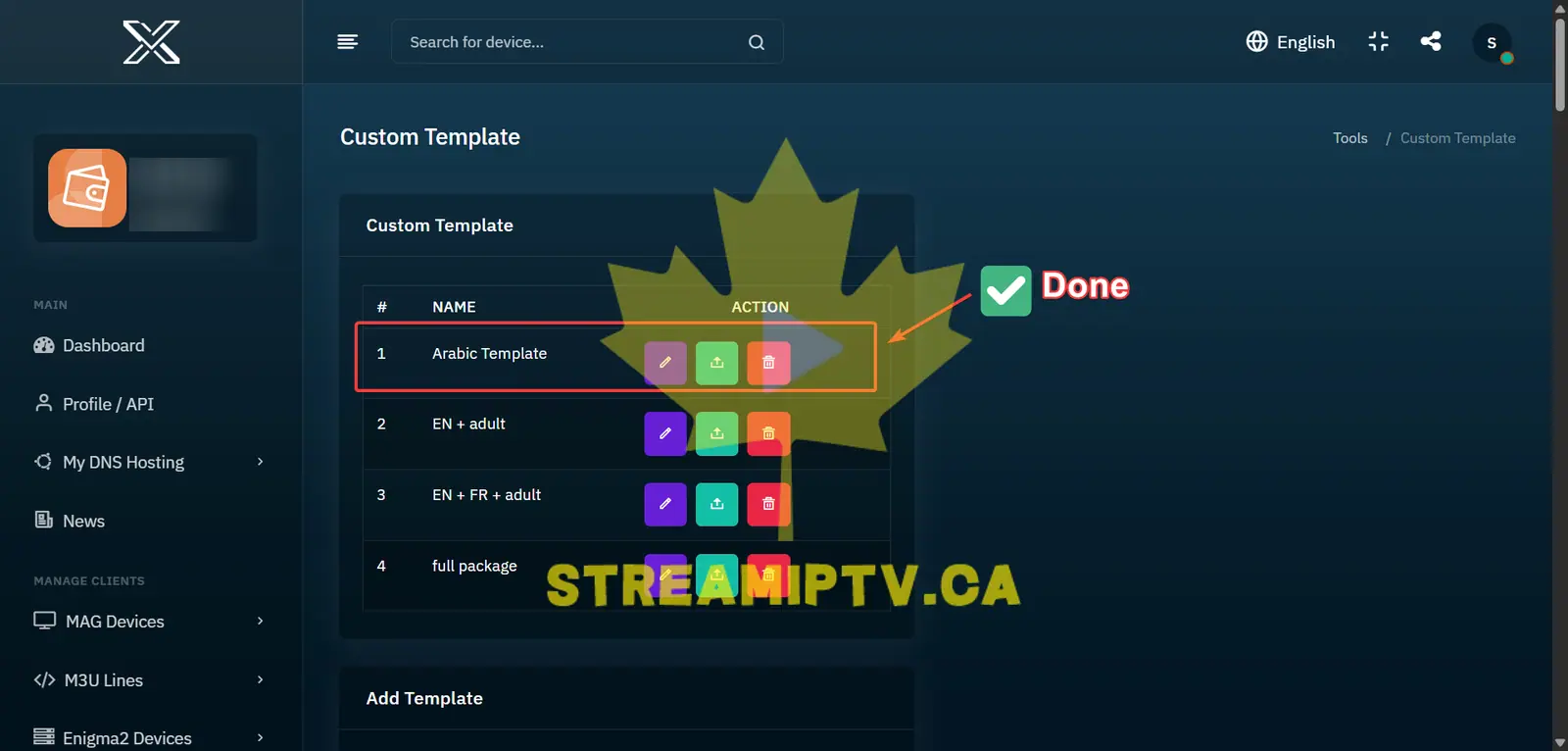
Check the Templates list and confirm that your new TREX Custom Template appears with the correct name.
Your template is now ready to use when creating new subscriptions.
Comments (0)
Leave a comment